Quickstart
I made this little tutorial that takes you from a blank slate to your first scheduled review. By the end we’ll have imported a Source, read part of it, made a flashcard, and reviewed it.
Before you begin
Section titled “Before you begin”- Install Kioku for your platform (see Install Kioku).
- Have the URL of a web article you’d genuinely like to remember. Any normal
https://page works. - Kioku opens on a Default Collection, a local database that holds everything you do on Kioku: your Sources, Topics, Extracts, Items, review history, and all that jazz. It’s already open when you launch the app, so there’s nothing to set up.
1. Import an article
Section titled “1. Import an article”You’ll bring the article into Kioku as a Source, which produces a Topic you can read incrementally.
- On the Dashboard, paste your URL into the Read bar (the field showing Paste an article or PDF URL…).
- Select Import.
Kioku fetches the page, strips it down to readable content, and opens it in the Reader. That’s the whole import.
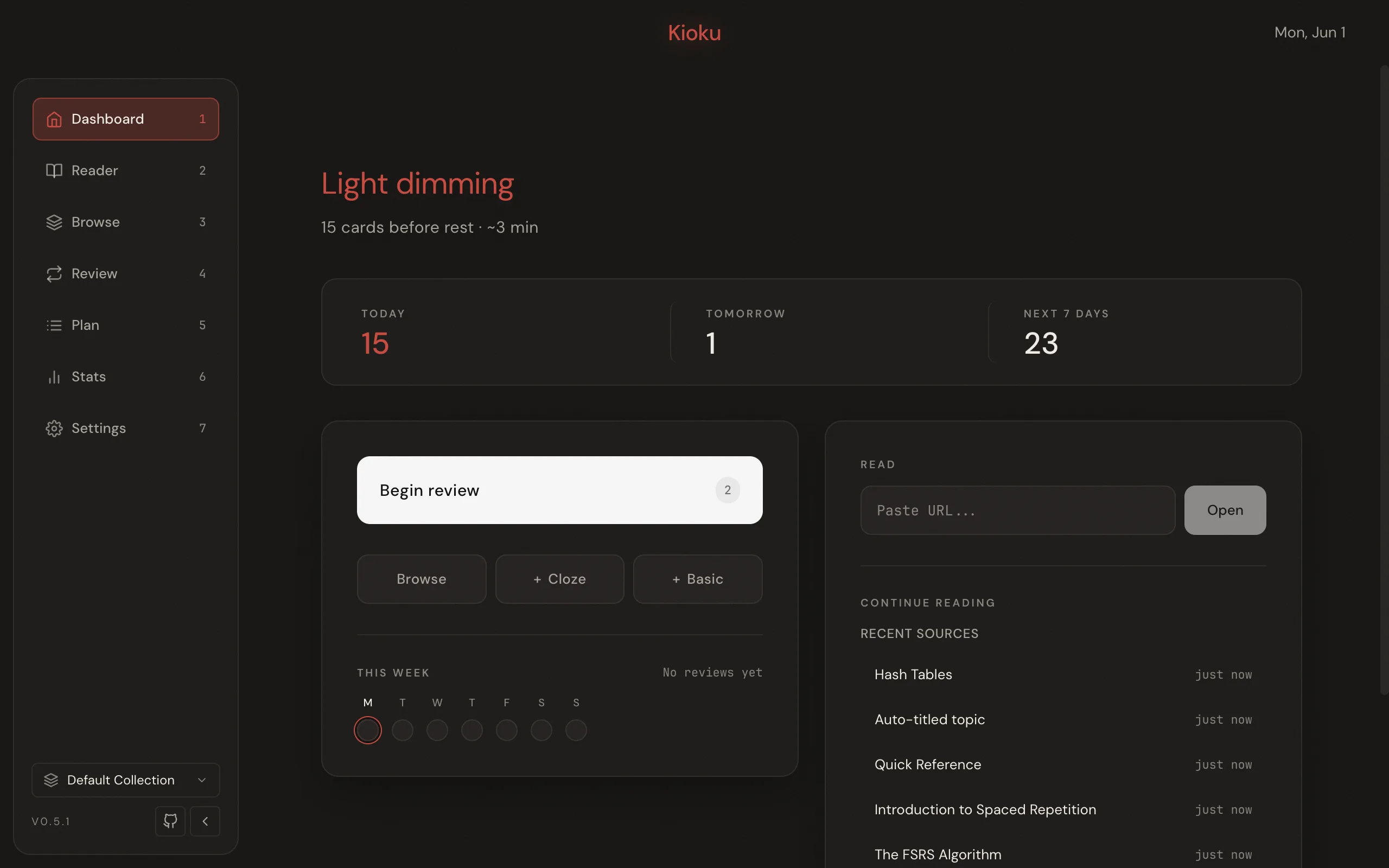
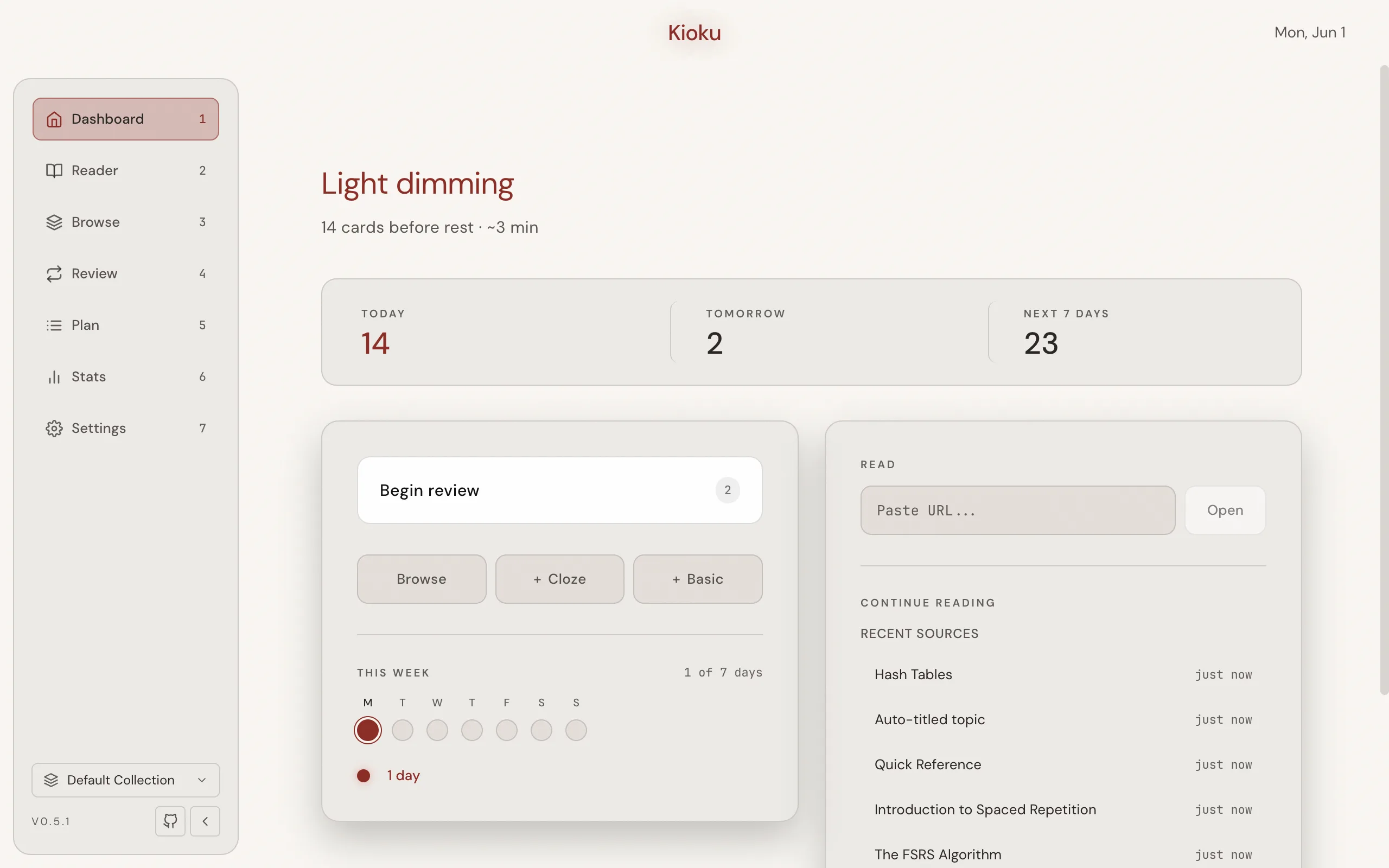
Your article is now a Topic in the Default Collection. There are other ways in: the Reader’s own URL bar, PDFs, and pages you want reloaded live during review rather than snapshotted. Import a web page covers all of them.
2. Extract and make a card
Section titled “2. Extract and make a card”You don’t have to finish the article. Reading a little at a time is the whole point of incremental reading.
- Read a few paragraphs of the Topic.
- Find one sentence worth remembering and select it.
- Press X, or select Extract in the selection toolbar, to create an Extract, a smaller reading unit carved out of the Topic.
- Select the key word or phrase you want to recall, then press Z, or
select Cloze. Kioku wraps your selection in
cloze syntax like
{{c1::your phrase}}and creates an Item with one Card.
That Card is now a scheduled flashcard waiting in your Queue.
3. Review
Section titled “3. Review”Time to grade what you made.
- Return to the Dashboard and select Begin review, or press 4 from anywhere to open the Review page. Kioku starts a session and shows your Card’s front with the prompt Press Space to reveal.
- Press Space to reveal the answer.
- Grade how well you recalled it under How well did you recall?. Choose 1 Again, 2 Hard, 3 Good, or 4 Easy. For a fact you just made, 3 Good is a fine choice. Each button previews the next interval.
Your Rating feeds FSRS, which computes when this Card is due again. When the session empties, Kioku shows a summary with how long until your next review.
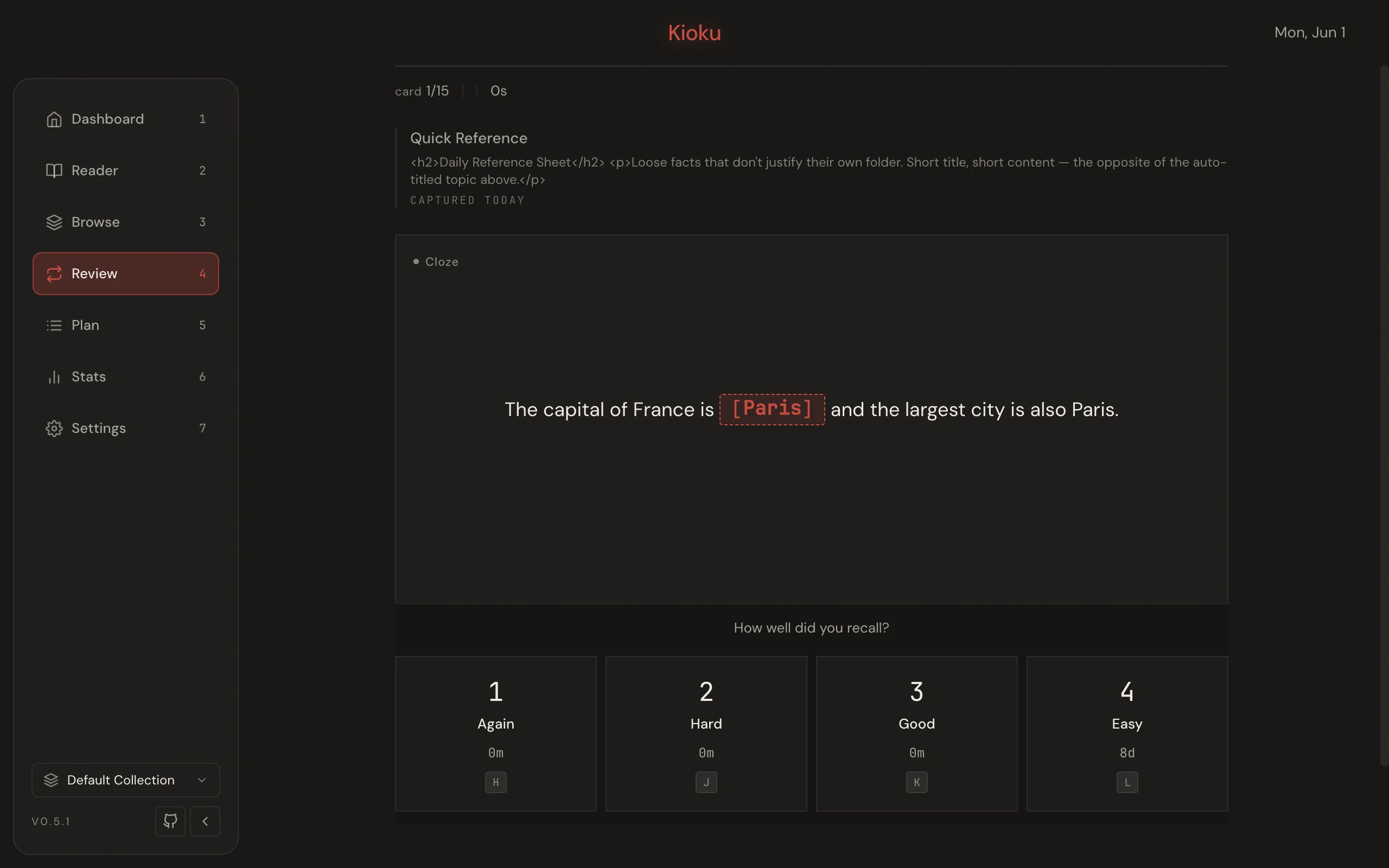
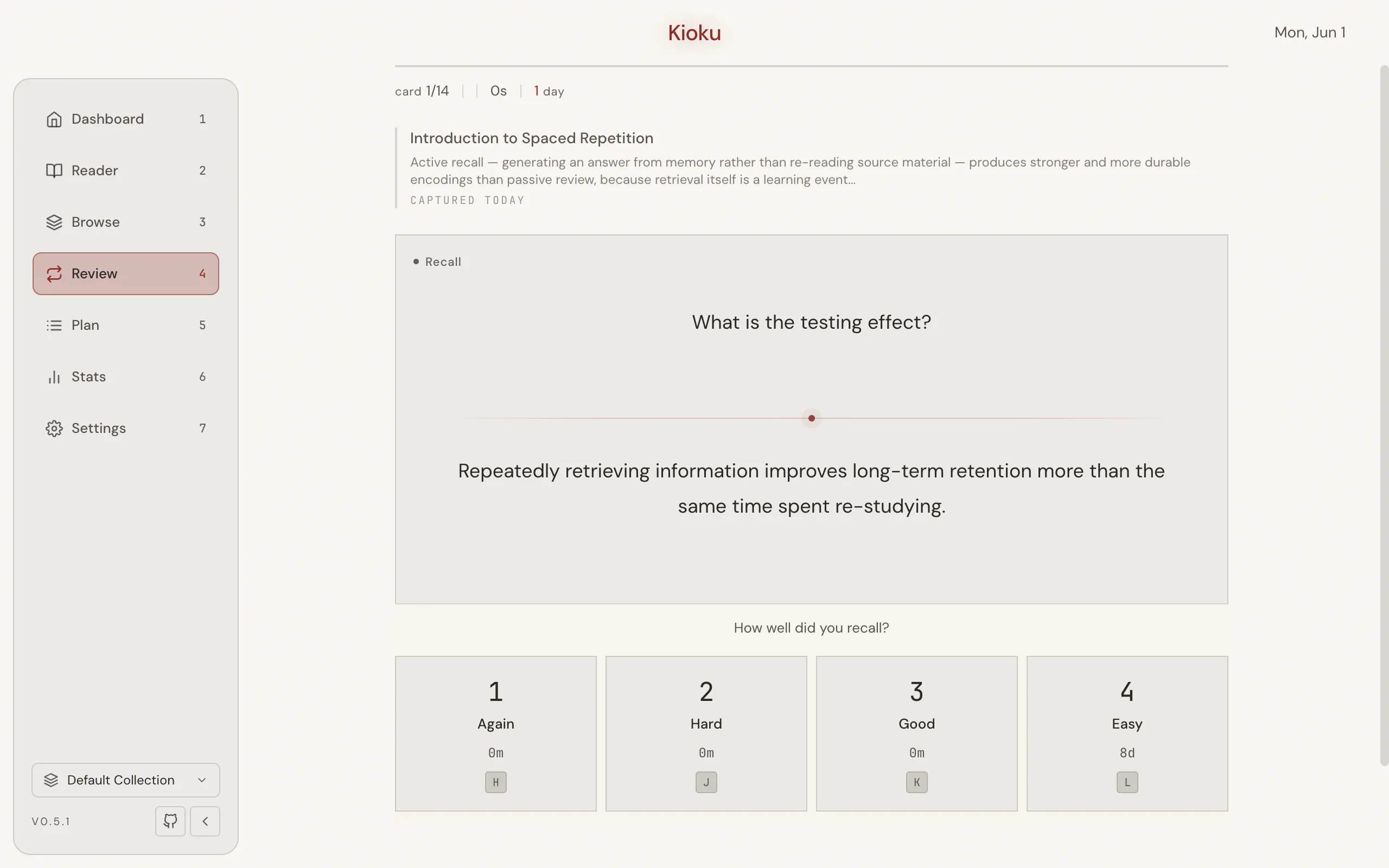
That’s the loop: import → read → extract → review. Everything else in Kioku is a variation on it.
Next steps
Section titled “Next steps”- Import your Anki decks if you’re bringing an existing collection with you.
- Import a web page in depth, including Live Import.
- Card types beyond cloze.
- Tune FSRS retention once you have a review routine.