Customize keyboard shortcuts
Rebind Kioku’s keyboard shortcuts to keys that suit you, then reset them whenever you want the defaults back.
Before you begin
Section titled “Before you begin”- Shortcut overrides are saved globally, not per Collection, so a change you make applies everywhere and survives switching Collections.
- A few core gestures cannot be rebound. See Shortcuts you can’t change.
- For the full list of default bindings, see the keyboard shortcuts reference.
Open the editor
Section titled “Open the editor”- Press H from any page to open the Keyboard Shortcuts modal.
- Find the category you want. Shortcuts are grouped into collapsible sections: Global, Reader, Review, Browse, Browse Focus Controls, Editors & Modals, Plan, and Plan Execution. Every section appears no matter which page you are on.
- Click a section header to expand it. A chevron points right when the section is collapsed and down when it is open.
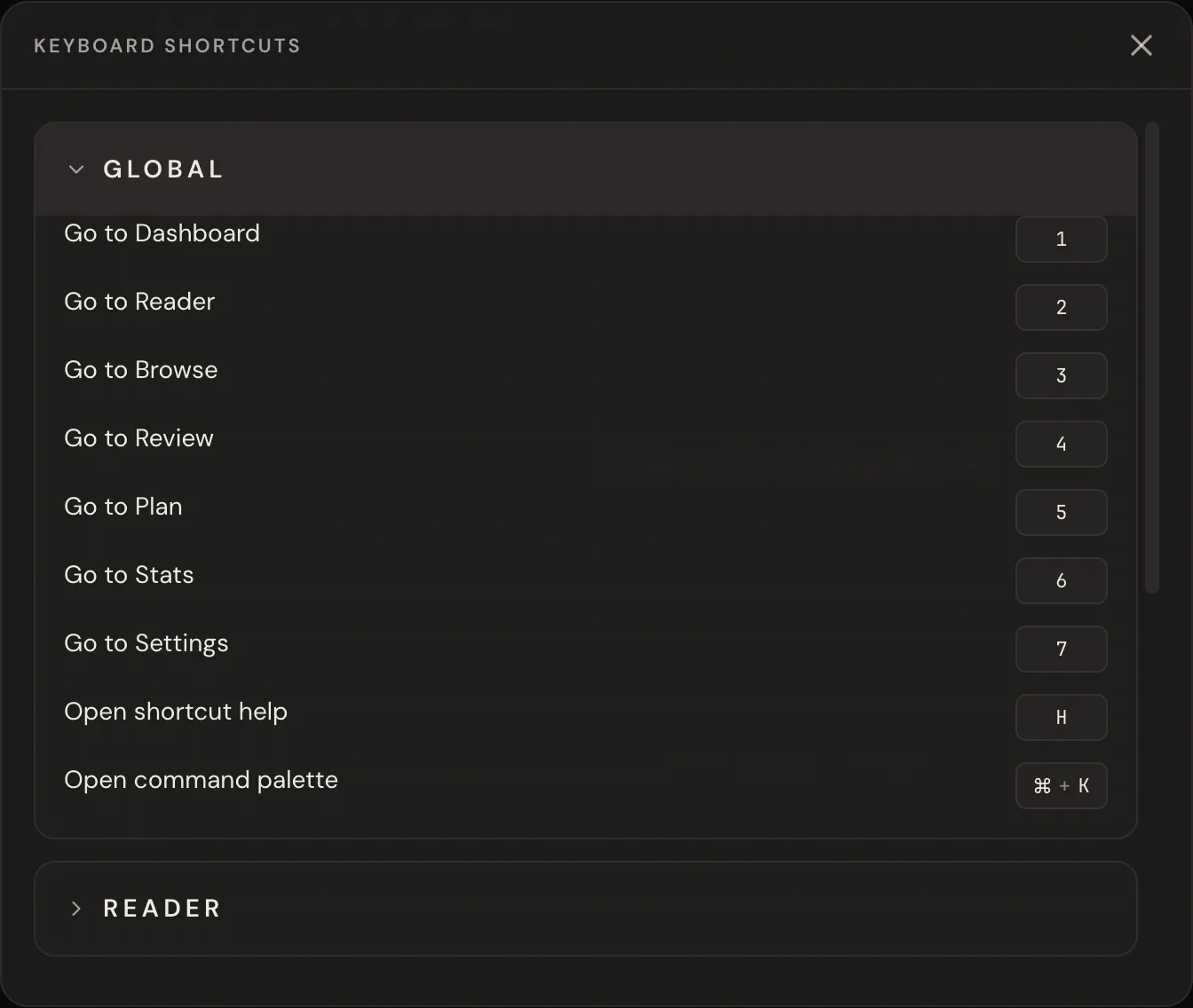
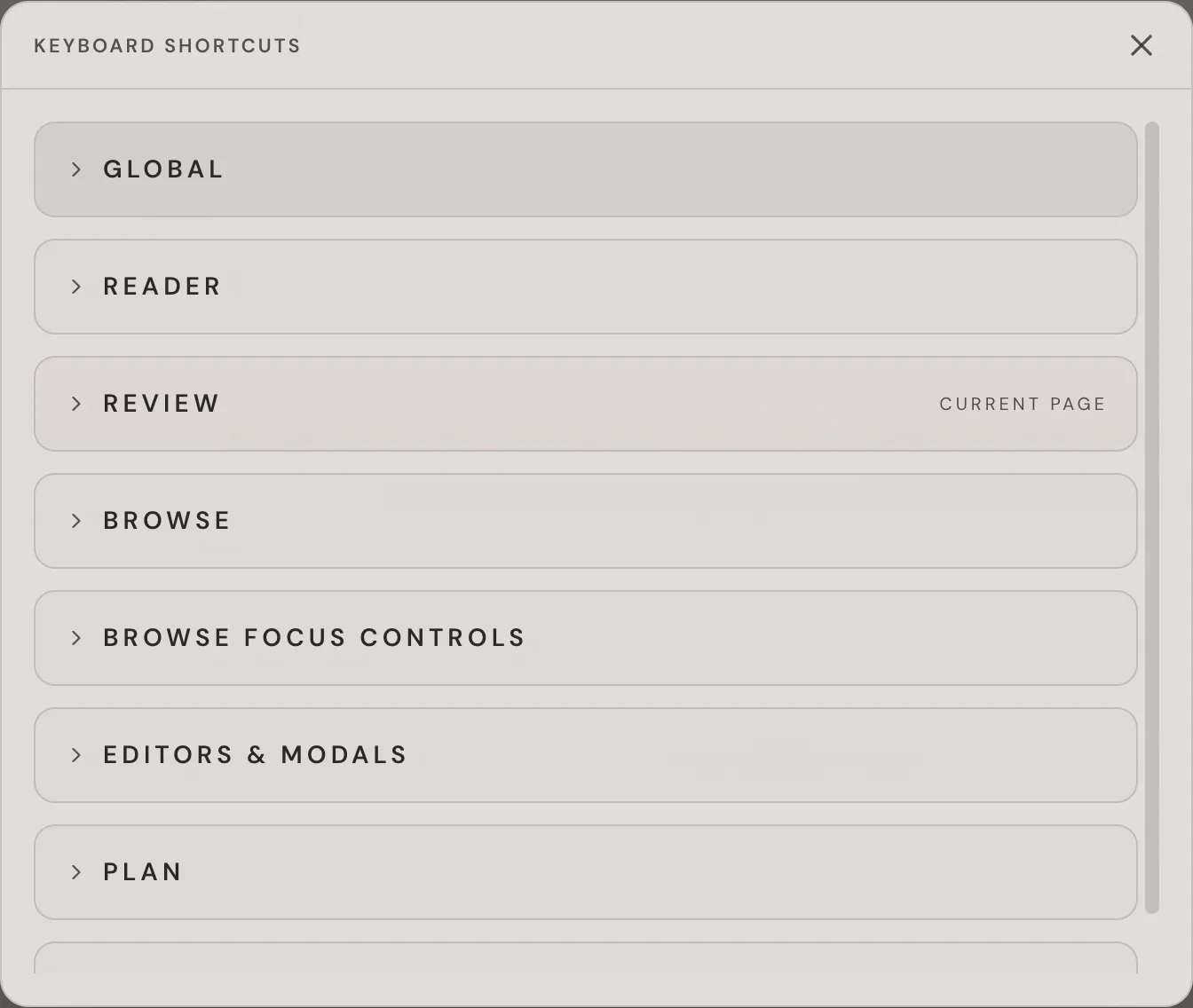
Rebind a shortcut
Section titled “Rebind a shortcut”- In an expanded section, click the key chip next to the shortcut you want to change. The chip enters recording mode and shows Press keys…, with an Esc to cancel hint beneath it.
- Hold any modifiers, then press the final key. While you hold modifiers, the chip shows a live preview of the combination joined by
+with a trailing…. - Release onto a real key to save. Kioku captures and saves the binding instantly, the modal stays open, and the chip updates to the new label.
Resolve a conflict
Section titled “Resolve a conflict”If the combination is already taken by another shortcut in the same scope, the chip turns red and shows Already used by “<name>”. Nothing is saved.
- Press a different key to keep recording, or press Esc to cancel.
- To swap two shortcuts, first move the first action onto a free key (which frees its old key), then assign that freed key to the second action.
Kioku refuses some keys outright rather than reporting them as conflicts. Structural keys such as Esc, Enter, Tab, Space, the arrow keys, Delete, and Backspace show That key is reserved and can’t be rebound.
Reset to defaults
Section titled “Reset to defaults”A customized shortcut shows a tint and a reset button (↺) to the left of its chip.
- Reset one shortcut: click the
↺button on that row to revert it to its default and remove the override. - Reset everything: click Reset all to defaults at the top of the modal. This button appears only once at least one override exists, and clicking it also cancels any in-progress recording.
Shortcuts you can’t change
Section titled “Shortcuts you can’t change”Some gestures are fixed and render as read-only key chips with no Change shortcut button:
- Review ratings: the digits 1 / 2 / 3 / 4 and the letters H / J / K / L, mapped to Again, Hard, Good, and Easy.
- The extract and cloze gesture: X to create an Extract and Z to create a Cloze from selected text.
- Structural keys: Esc, Enter, Tab, Space, the arrow keys, Home, End, PageUp, PageDown, Delete, and Backspace.
Result
Section titled “Result”Your chosen combination drives the action immediately and persists across sessions. Customized rows stay tinted with a ↺ reset button so you can tell at a glance which bindings differ from the defaults.