Pages
Kioku’s main window has a left sidebar of seven top-level pages. Switch between them by clicking the sidebar or pressing the number key shown for each page below.
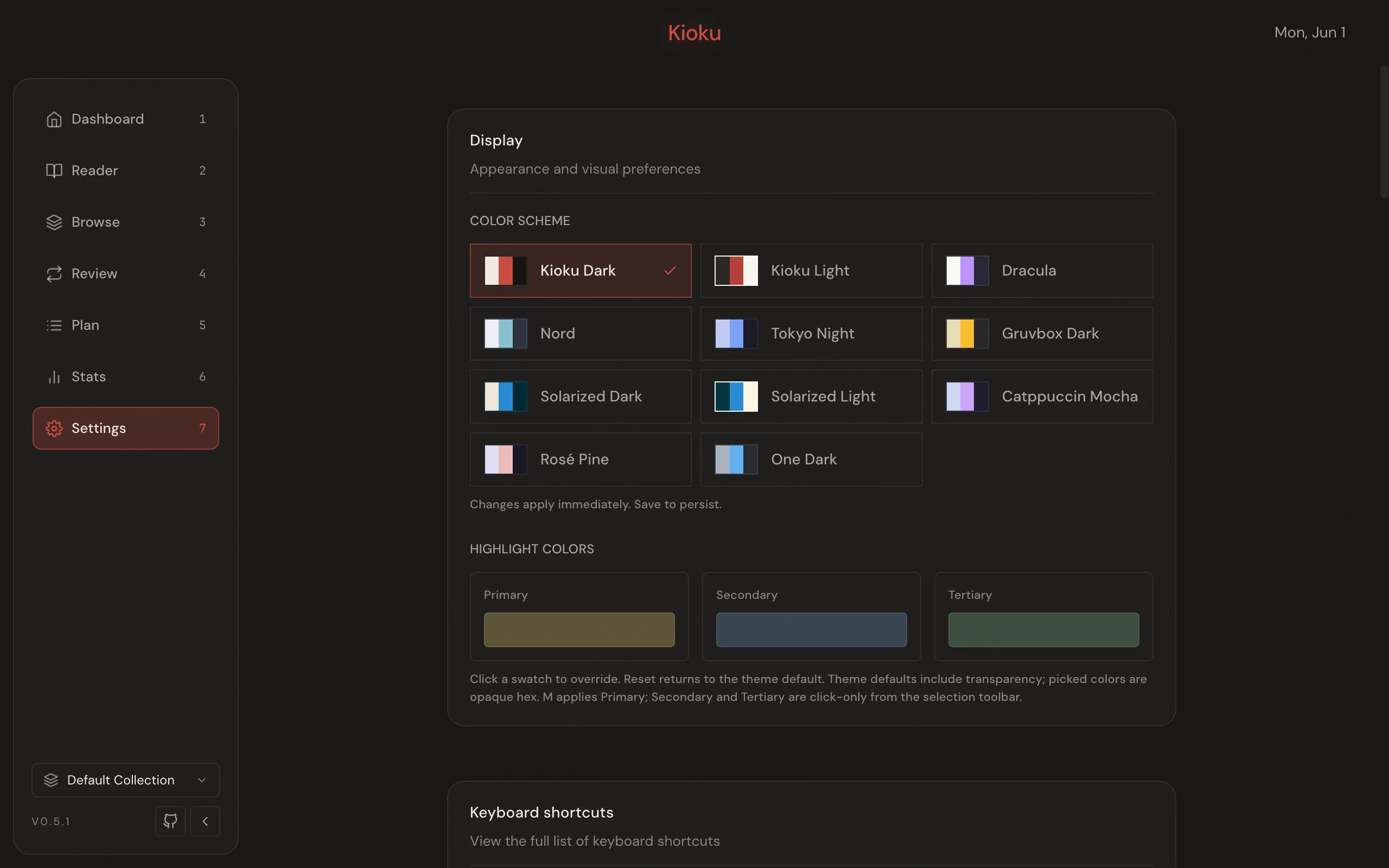
The number keys map to the sidebar order: 1 Dashboard, 2 Reader, 3 Browse, 4 Review, 5 Plan, 6 Stats, 7 Settings. These bindings are rebindable; see Customize shortcuts.
Dashboard
Section titled “Dashboard”Nav key: 1. The launch page, shown when Kioku starts.
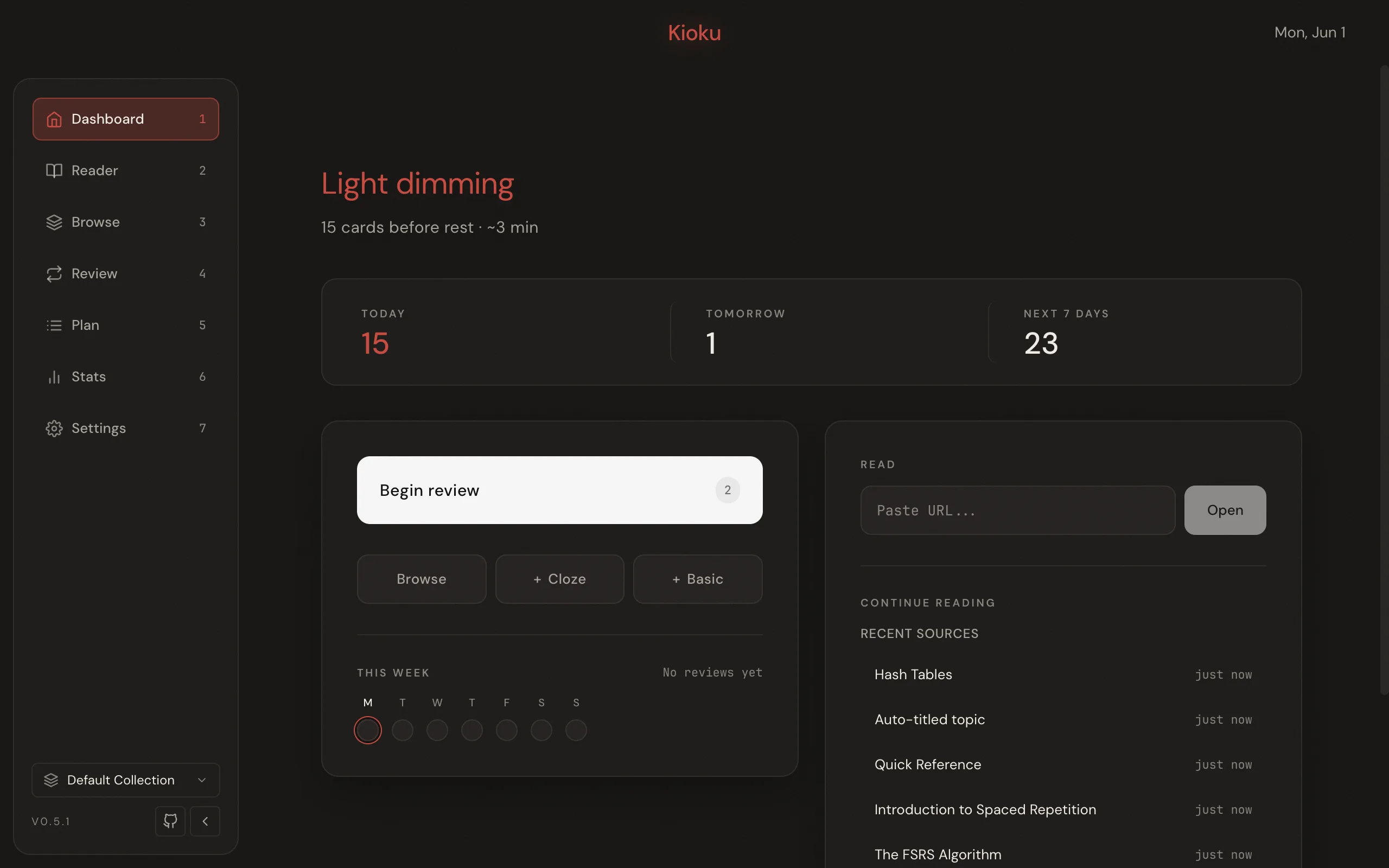
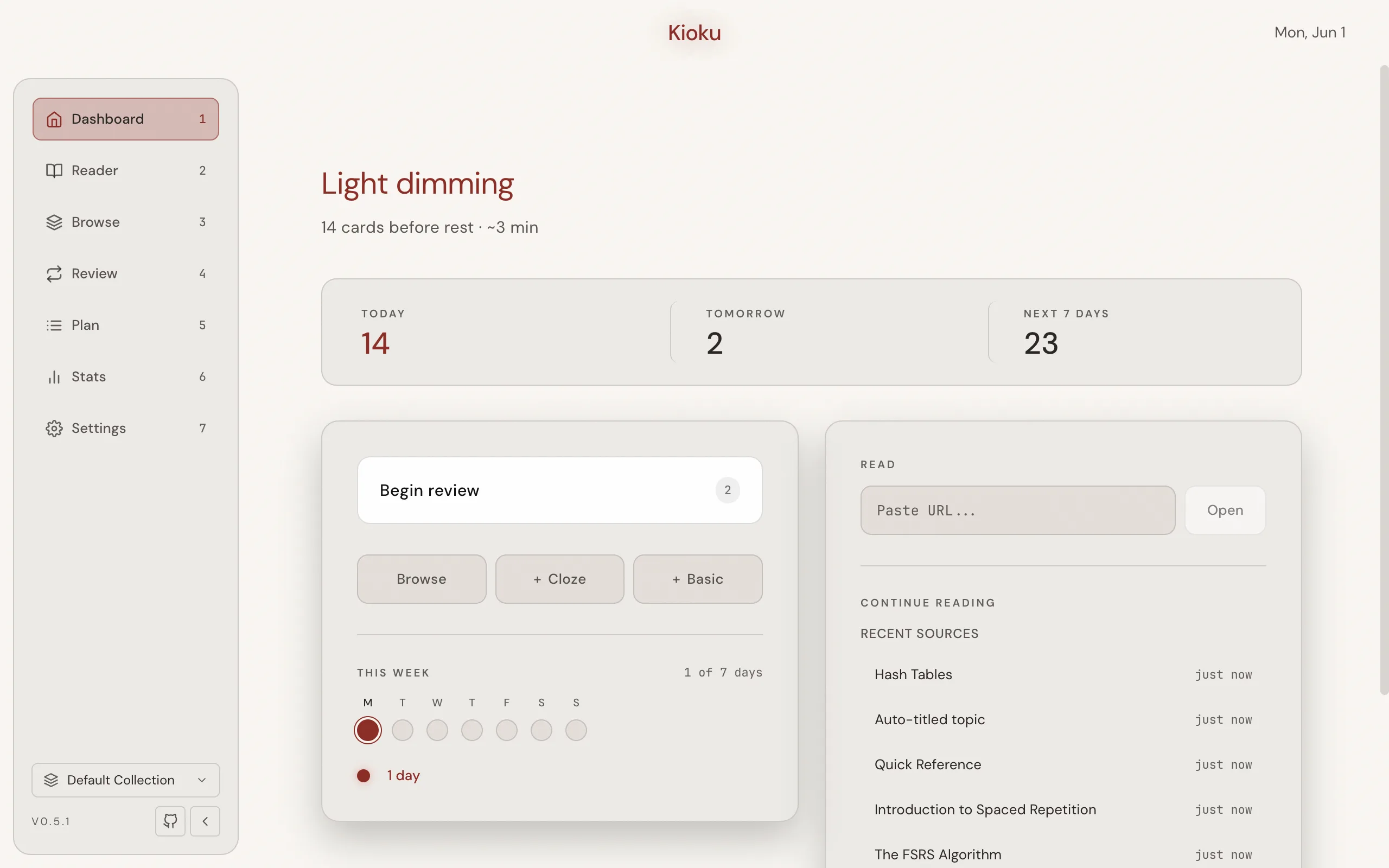
Dashboard gives an overview of your day and a quick way into a study session. It shows a greeting with a session estimate, a forecast for Today, Tomorrow, and Next 7 days, a This week activity strip, and a streak. The primary action is Begin review, which opens Review (it reads Nothing to review when nothing is due). Tertiary actions are Browse, +Cloze, and +Basic (the last two open a quick Card editor). A right-side panel holds a Read bar that opens Reader at a pasted URL and a Continue reading list of recent Sources.
Reader
Section titled “Reader”Nav key: 2. The incremental-reading and web-import workspace.
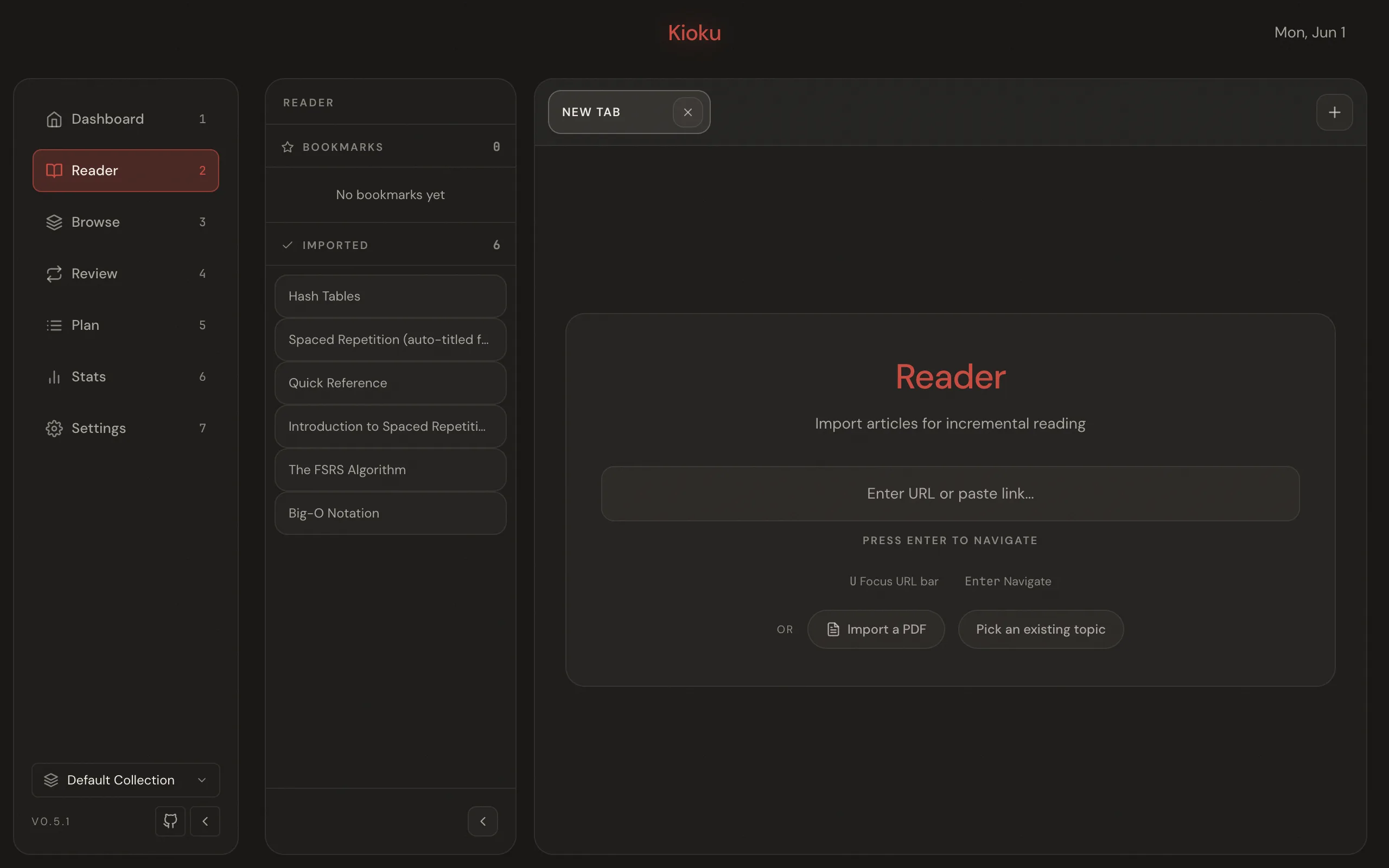
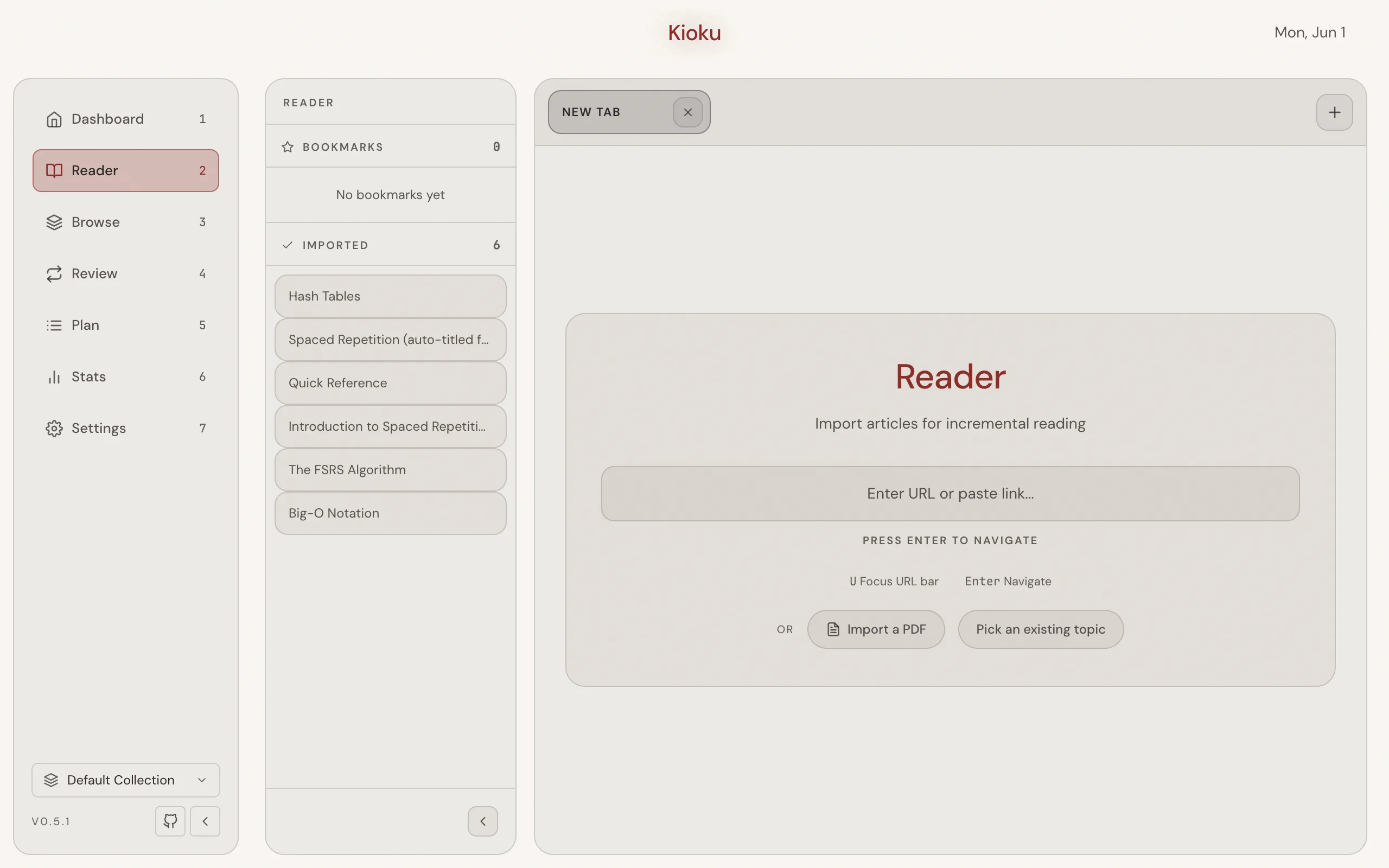
Reader loads web pages and imported PDFs in an embedded webview and lets you turn selected text into study material. Primary actions: navigate to a URL, go back or forward, refresh, import the current page, bookmark it, and create an Extract or a Cloze Card from a text selection. Reader sits at 2 because incremental reading is Kioku’s differentiator. See Import a web page, Extract and cloze, and the Incremental reading concept.
Browse
Section titled “Browse”Nav key: 3. The knowledge-tree manager.
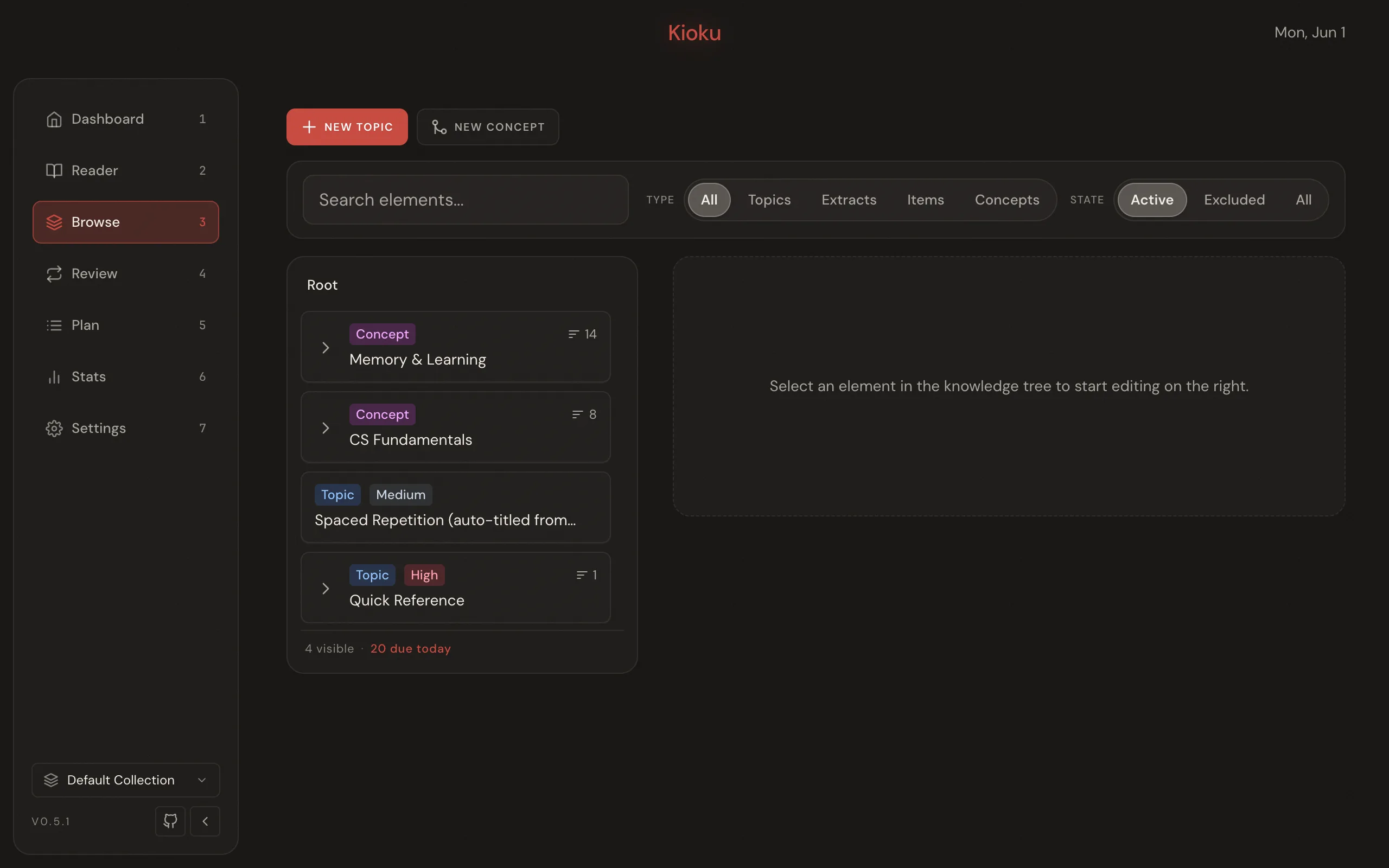
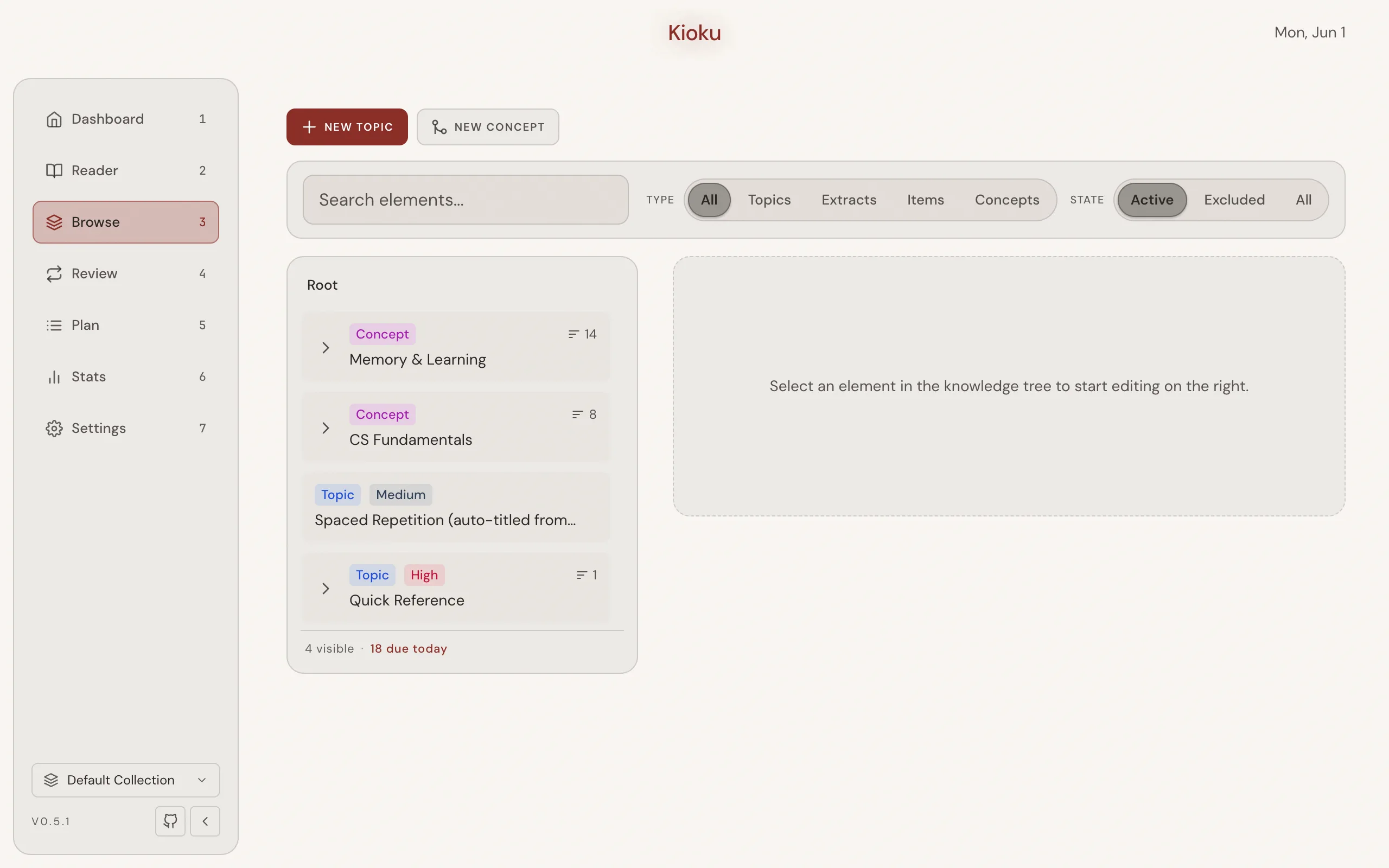
Browse is a two-pane workspace for exploring, organizing, and editing every Element in the active Collection. The left pane is a tree of Topics, Extracts, Items, and Concepts with drag-and-drop reordering and reparenting; the right pane is an inline editor plus a details panel with metadata, a priority slider, and per-Element actions. Header buttons NEW TOPIC and NEW CONCEPT create Elements. The toolbar has search (focus with /), a Type filter, a State filter, Clear filters, and, while searching, a Review button that starts an ad-hoc Review of the results. See the Elements concept.
Review
Section titled “Review”Nav key: 4. The spaced-repetition Review session.
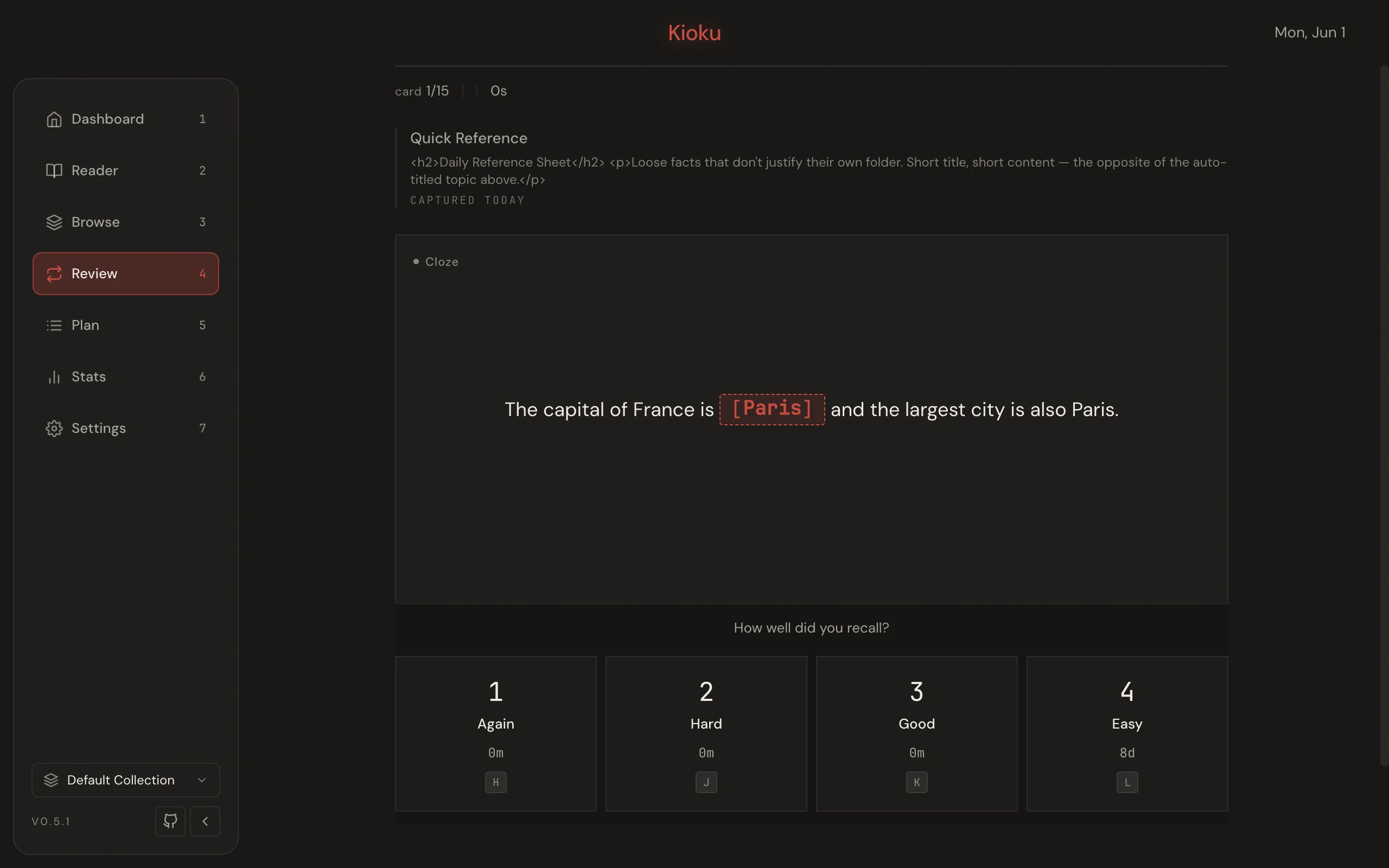
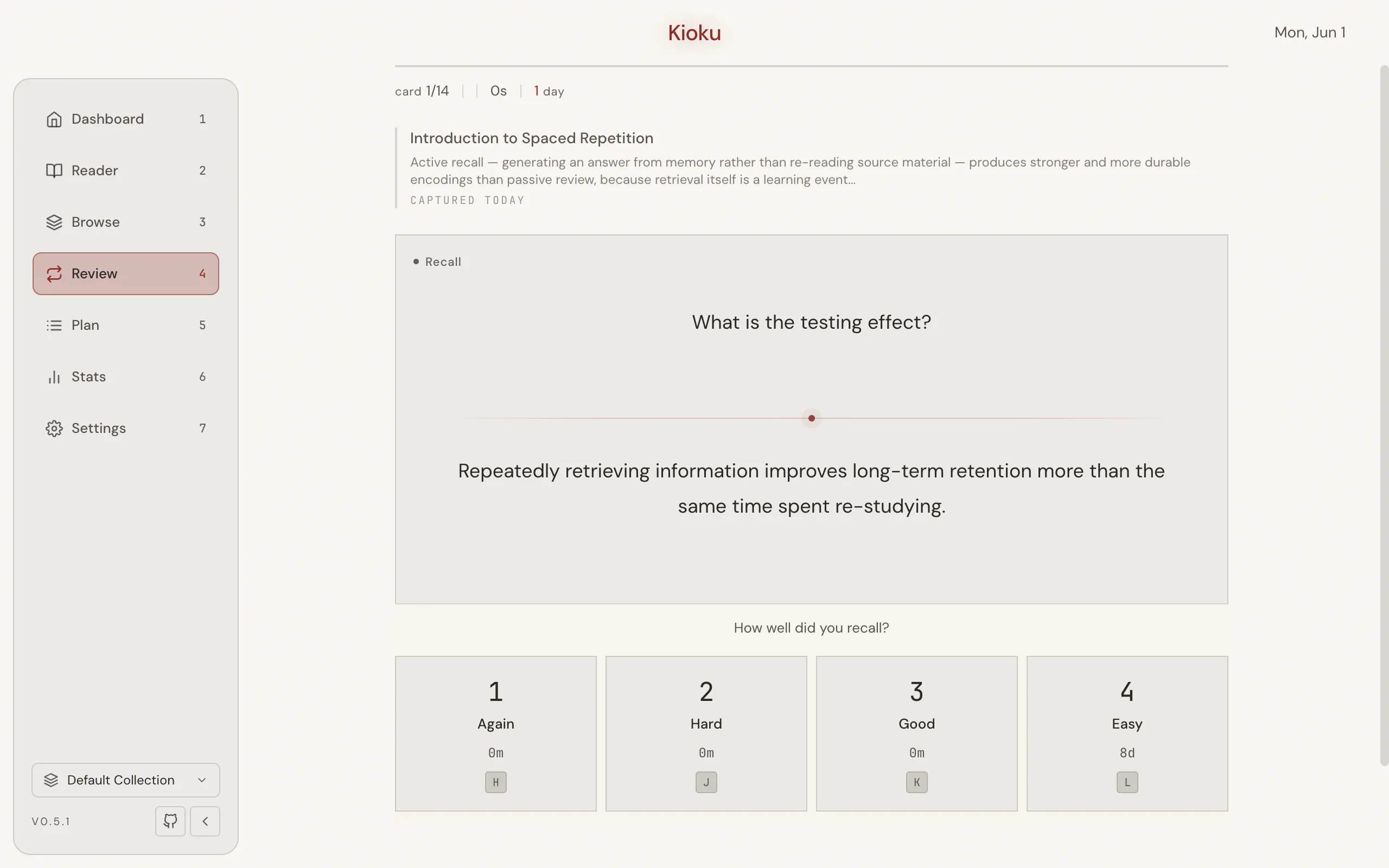
Review works through the due Queue of Cards, Topics, and Extracts. For Items you rate recall on a four-point scale: 1 Again, 2 Hard, 3 Good, 4 Easy. For Topics you choose a Topic action (read, extract, skip, done). You can also undo the last Review, postpone, and set or jump to a read point. See Reviewing and the Review queue and Spaced repetition concepts.
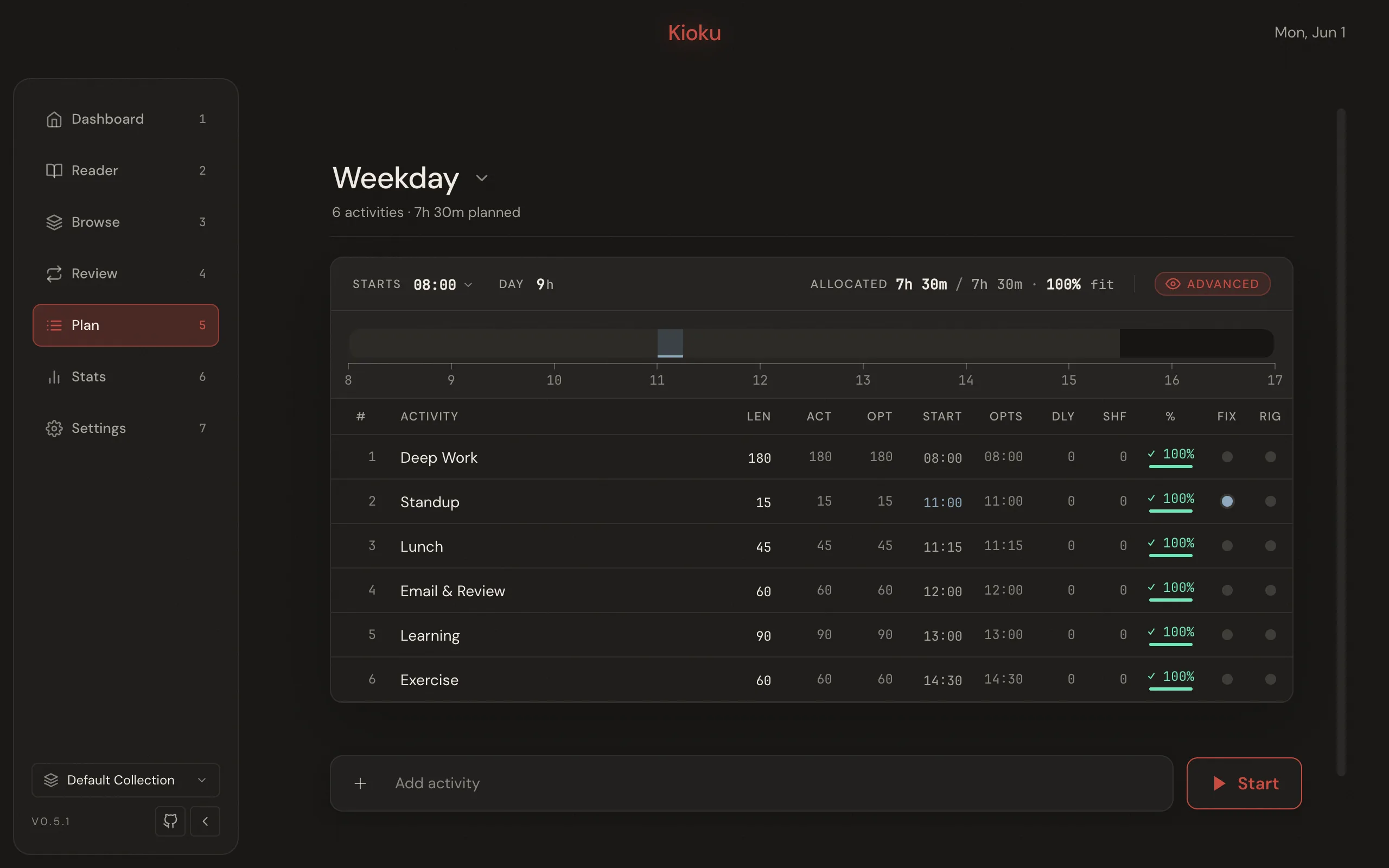
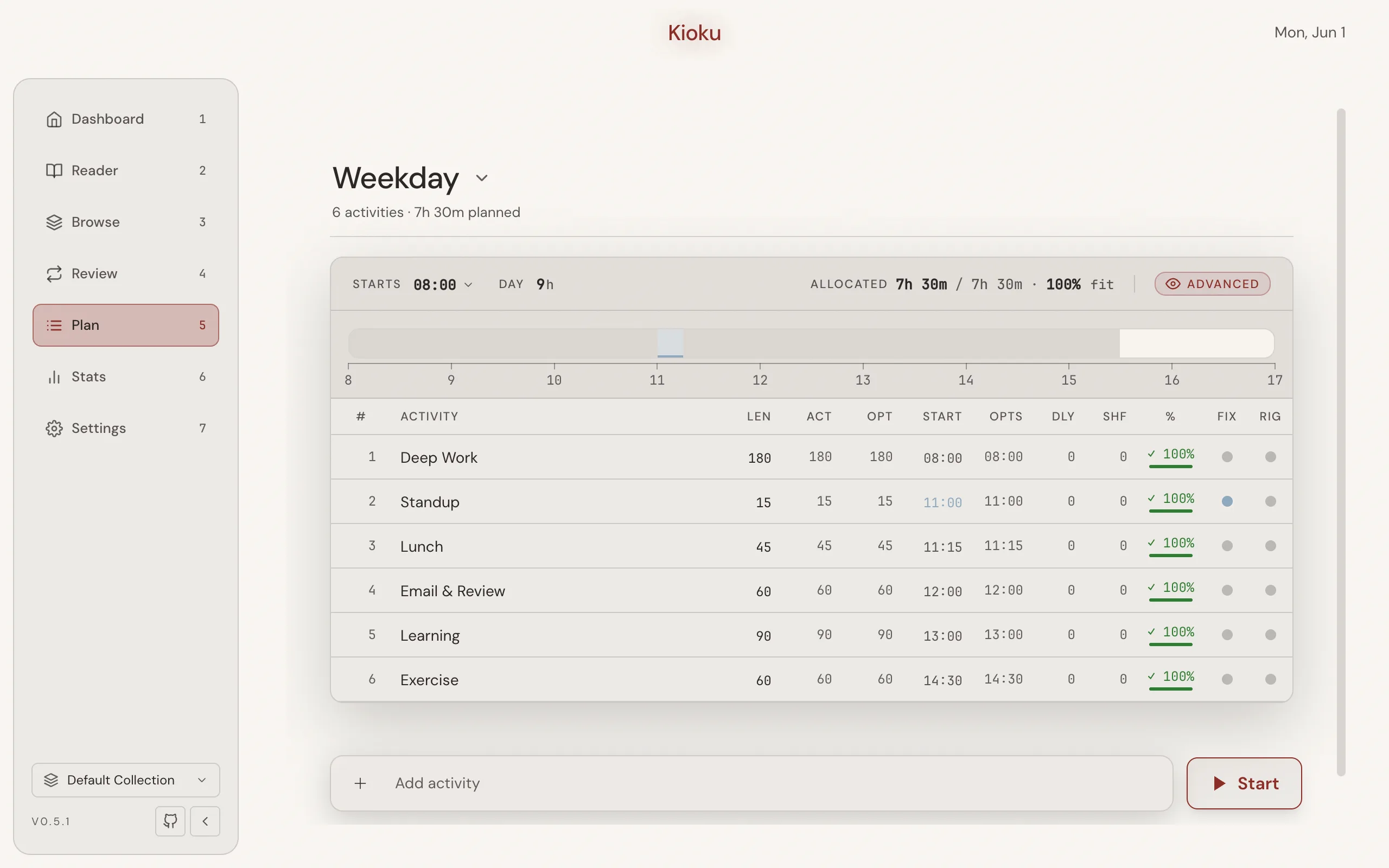
Nav key: 5. The daily-schedule planner.
Plan lets you build time-blocked activity templates and execute one as a live day. The page renders a template switcher, a schedule table of activities (with name, length, fixed start time, and rigid duration), and an execution view when a day is running. It distinguishes editing a template from running an execution, and has a statistics view and import/export. See the Plan guide.
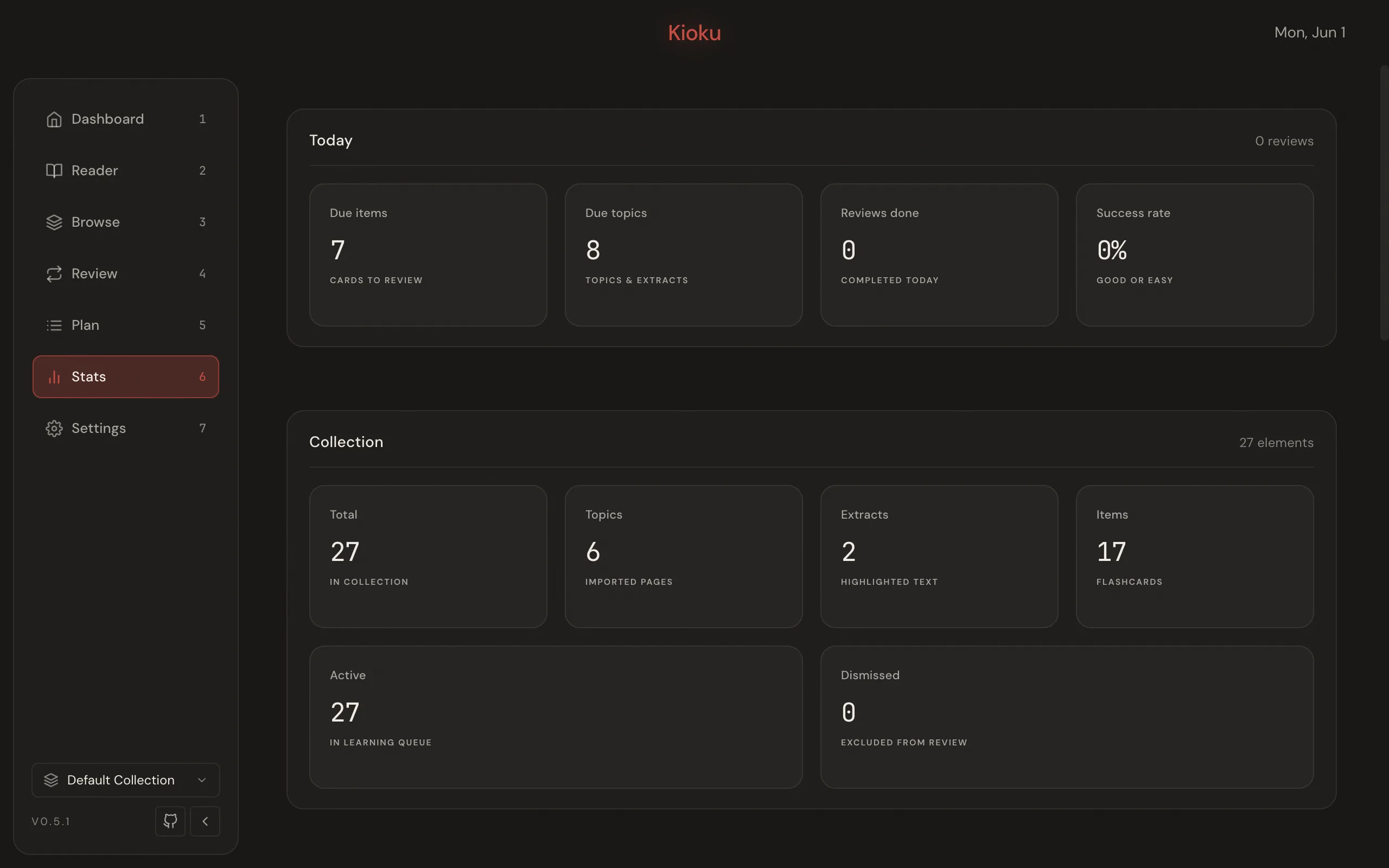
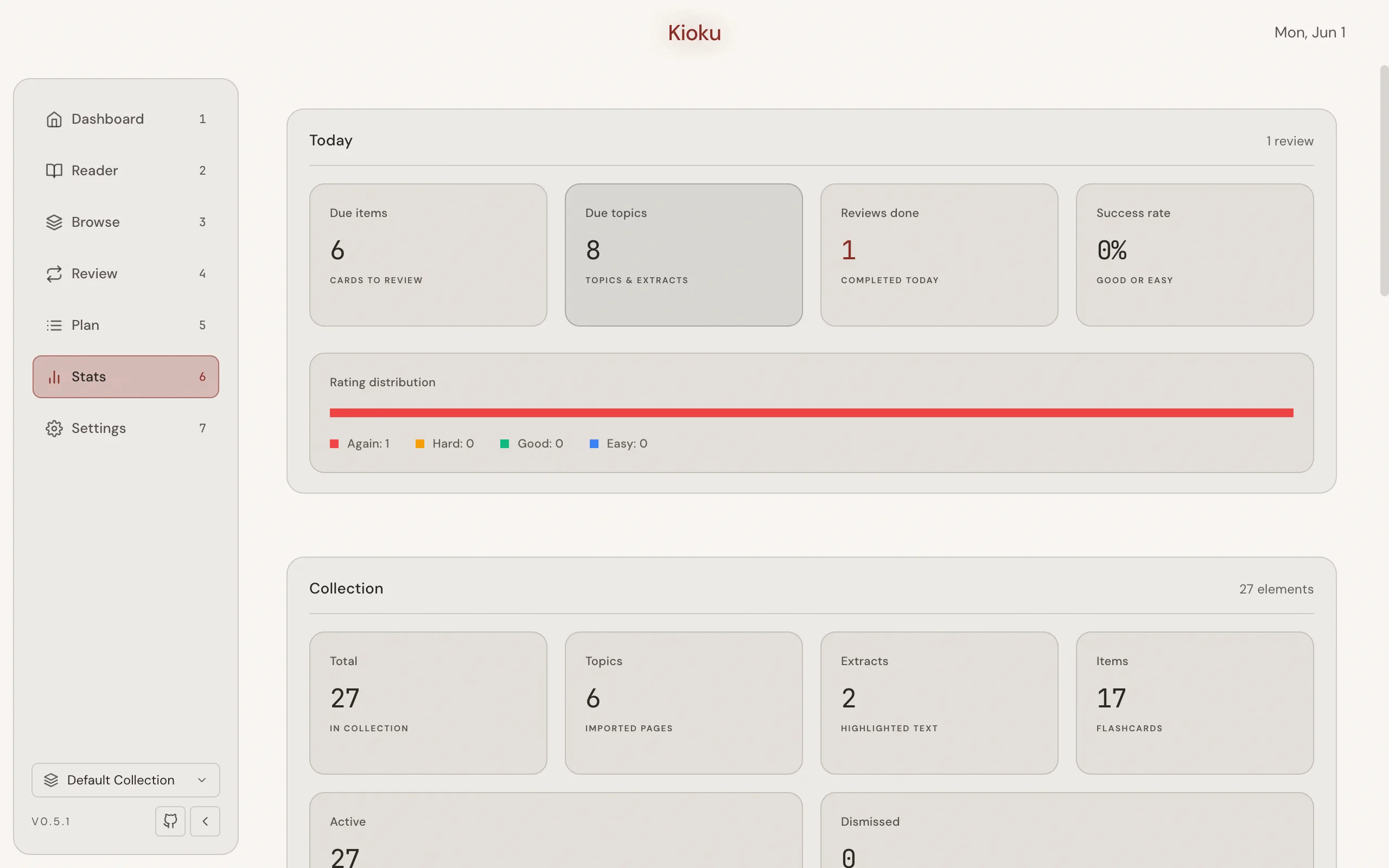
Nav key: 6. The read-only statistics dashboard.
Stats reports learning analytics for the active Collection; nothing here is editable. Sections cover Today (due Items and Topics, reviews done, success rate, and a rating distribution), Collection totals by type and status, Learning, Performance, Workload, and Priority.
Settings
Section titled “Settings”Nav key: 7. App configuration.
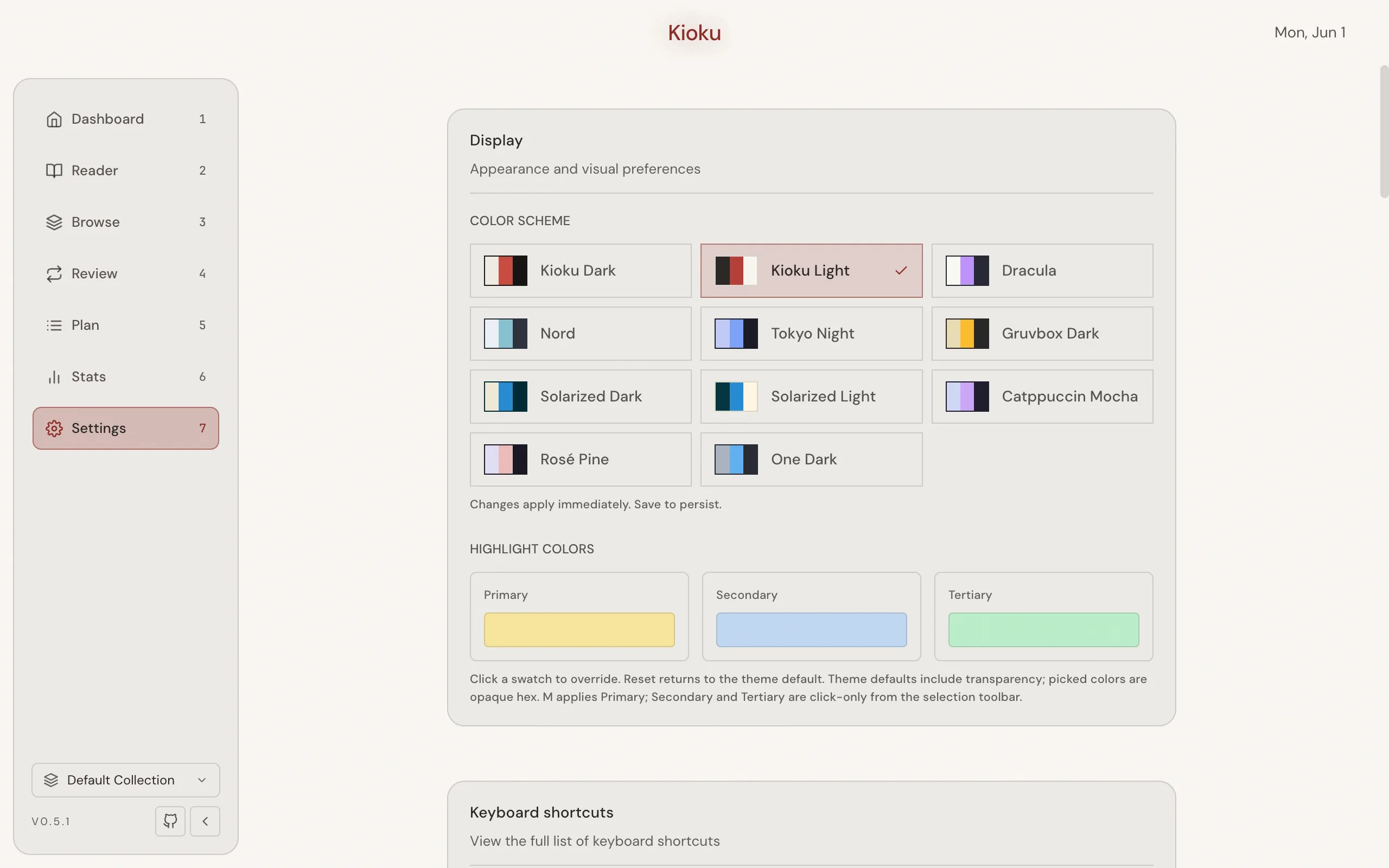
Settings adjusts appearance, scheduling, Queue behavior, Collections, and maintenance. It groups controls into sections: Display (color scheme and Highlight colors), Keyboard shortcuts (Show shortcuts), Item scheduler (desired retention and FSRS optimization), Topic scheduler, Queue, Auto-postpone, Import domains, Collections, Export, and more. Changes are buffered until you choose Save settings, and a sticky Unsaved changes banner protects against losing them. For the full enumeration of controls and defaults, see the Settings reference; for FSRS tuning, see Tune FSRS; for backups and exports, see Backup and export.
Related
Section titled “Related”- Keyboard shortcuts: the complete shortcut map by context.
- Settings reference: every Settings control and its default.
- Glossary: the canonical terms used above.