Review a session
Work through your due Queue. Grade each Item and act on each Topic.
Before you begin
Section titled “Before you begin”- You need at least one Item or Topic due. If nothing is due, the session opens straight to the empty screen.
- A review session interleaves recall (Items) and reading (Topics). They use different controls, covered separately below. For the why, see The review queue.
- Start the session. In the left sidebar, select Review (or press 4). Alternatively, on the Dashboard select Begin review. The session starts automatically and loads the first element.
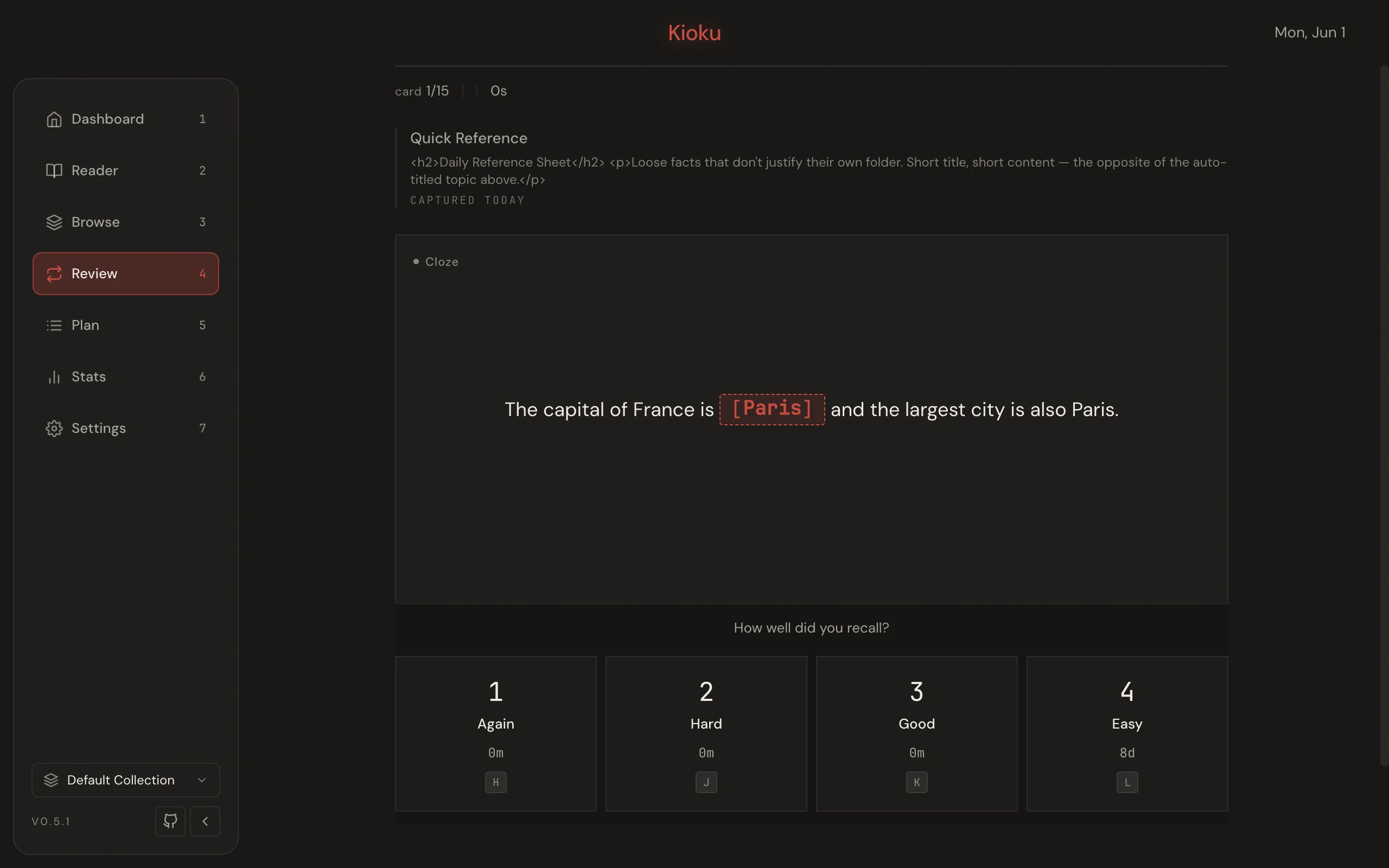
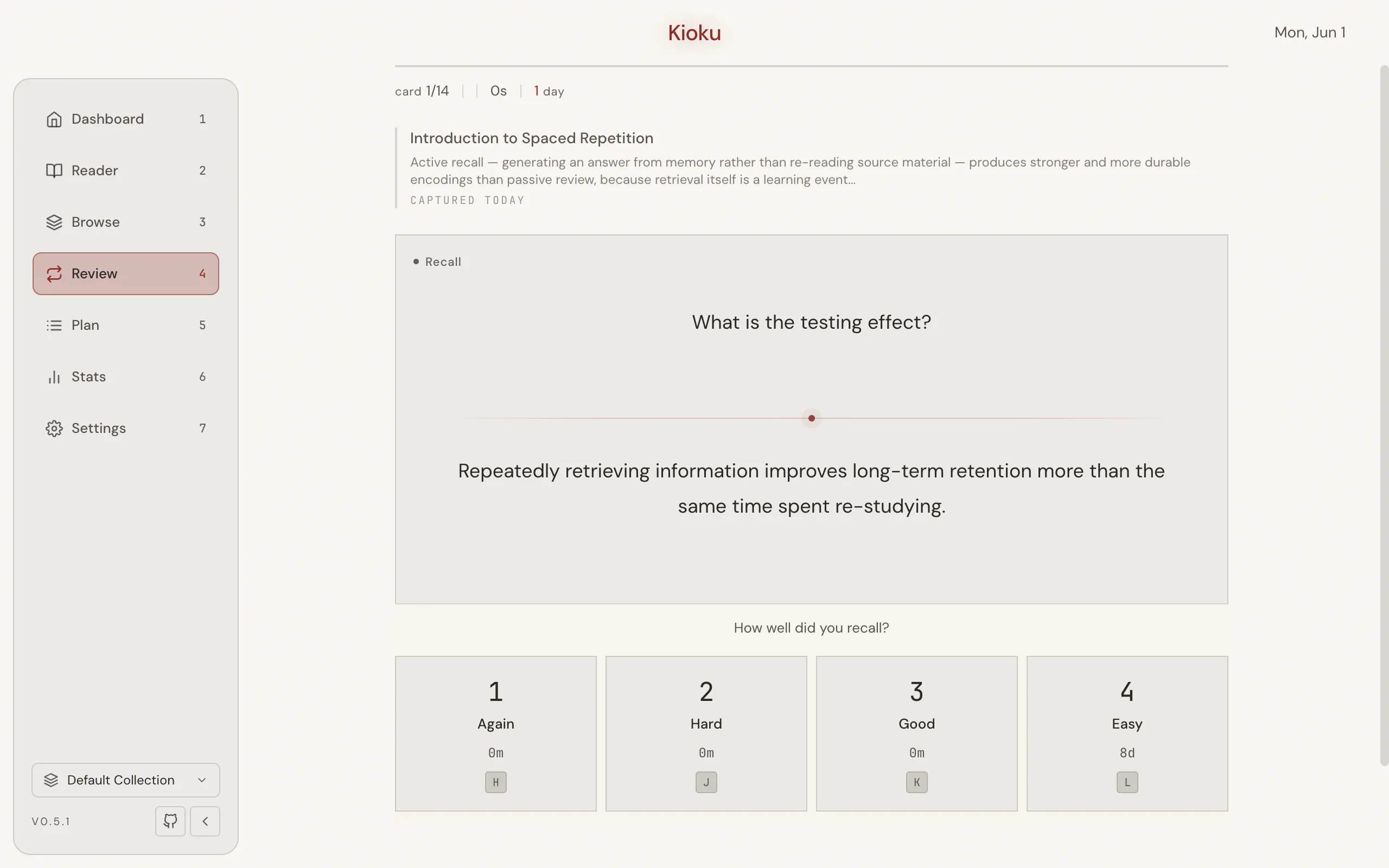
- Reveal an Item. When a flashcard appears, the prompt reads Press Space to reveal. Press Space to show the answer. You can also press Enter or click the card.
- Grade the Item. Under How well did you recall?, choose 1 Again, 2 Hard, 3 Good, or 4 Easy. Press the digit 1 to 4, or use the home-row keys H (Again), J (Hard), K (Good), L (Easy). Each button previews the next interval (for example,
10m,1d,2mo). Grading advances to the next element.
Undo a mistaken grade
Section titled “Undo a mistaken grade”Press U to undo your last Item grade. This restores the Card’s scheduling state and rolls back the session stats.
Reschedule the current element
Section titled “Reschedule the current element”To push the current Item or Topic to a later date instead of grading it, press P to open the Reschedule dialog. Pick a quick option (Tomorrow, +3 days, +1 week, or +1 month) or choose a date, then select Save. The element moves to the chosen due date and the Queue advances.
Result
Section titled “Result”You grade each Item and act on each Topic in turn. When the Queue is empty, the session summary appears with a Return to dashboard button. Press Esc at any time to end the session early.