Plan your study day
Lay out a study day as activities in the Plan, run it in real time, and compare what you spent against what you planned.
Before you begin
Section titled “Before you begin”- The Plan lives on its own page. Open it with the global 5 shortcut.
- You work from a template: a reusable “ideal day” with a total-hours budget, a start time, and an ordered list of activities. If no template exists yet, the page shows an empty state with a create-template prompt.
- An optimizer runs on every edit. It compresses flexible activities to fit the budget while honoring activities you pin or lock. You don’t run it manually.
- Only one run can be active at a time. Finish or stop a run before starting another.
Create a template
Section titled “Create a template”- Press N (or select New Template) to open the New Template modal.
- Enter a Template Name (for example,
Weekday Routine). - Set Total Hours. The field accepts values from
0.5to24in steps of0.5; an out-of-range value shows Enter 0.5–24 hours. The default is 17 hours. - Set the Start Time. Use the time field, select Now to snap to the current clock, or toggle Live to follow the wall clock. The default is
07:00. - Select Create.
The new template becomes active and its name titles the page.
Build a schedule
Section titled “Build a schedule”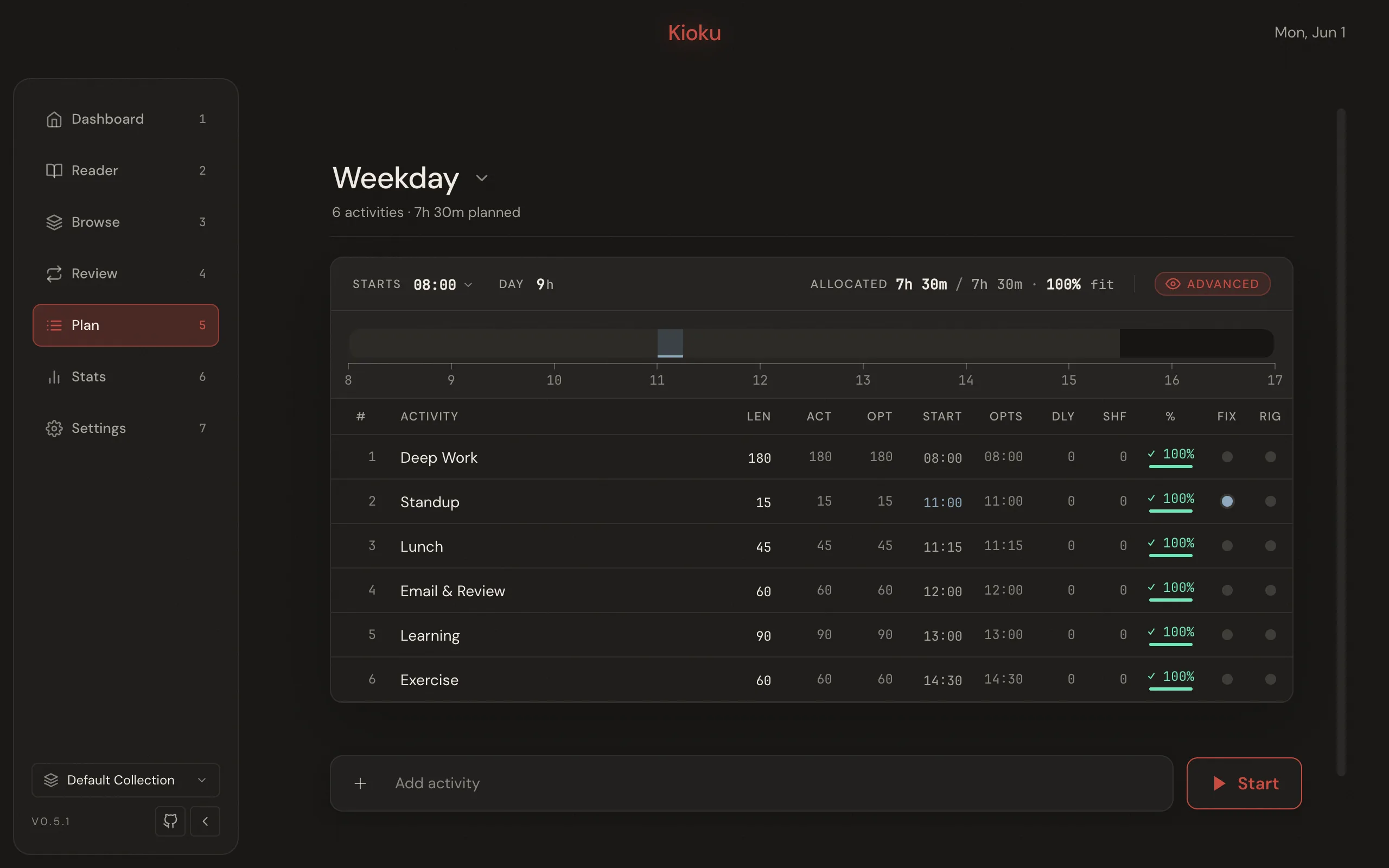
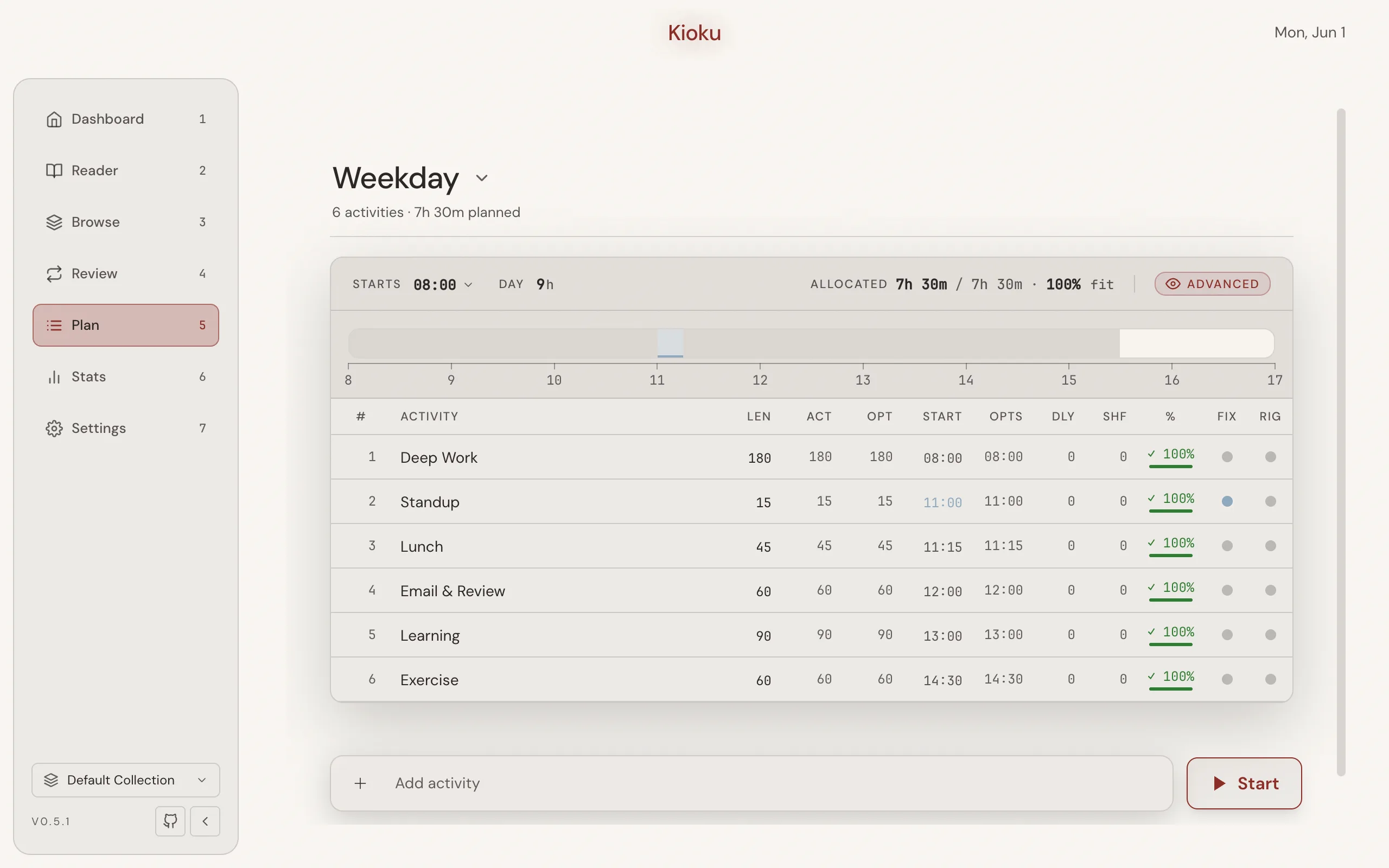
Each activity has a name, a desired length in minutes, and two independent flags:
- Fixed pins the activity to a clock start time (you set an
HH:MMvalue). - Rigid keeps the activity’s duration from being compressed to fit the budget.
- Select the floating Add activity bar at the bottom of the page (or press A).
- Type the activity’s name in the name field.
- Enter the duration in the min field (
1to1440). A live preview reads → <start> · <actLen> min · <percent>% fit once a duration is set. - To pin a start time, select Fixed and enter an
HH:MMvalue. To protect the duration, select Rigid. - Press Enter (or select the check) to add the activity. The bar stays open for the next entry; press Esc to close it.
The header shows the day’s Day (total-hours) field, the Starts menu, and an Allocated <x> / <desired> · <n>% fit readout. Toggle Advanced to reveal extra optimizer columns (optimal length, optimal start, delay, shift).
Edit and reorder activities
Section titled “Edit and reorder activities”Select a row by clicking it or by pressing J / K to move the selection. Then:
- Edit the name with E and the length with L; Enter commits and Esc cancels.
- Toggle Fixed with F and Rigid with R.
- Reorder with Shift+J / Shift+K.
- Delete with D.
When a row is selected, a toolbar above the table adds Split activity, Merge with “<next>”, Insert activity after, and Delete activity, alongside the Fixed and Rigid toggles.
Run your plan
Section titled “Run your plan”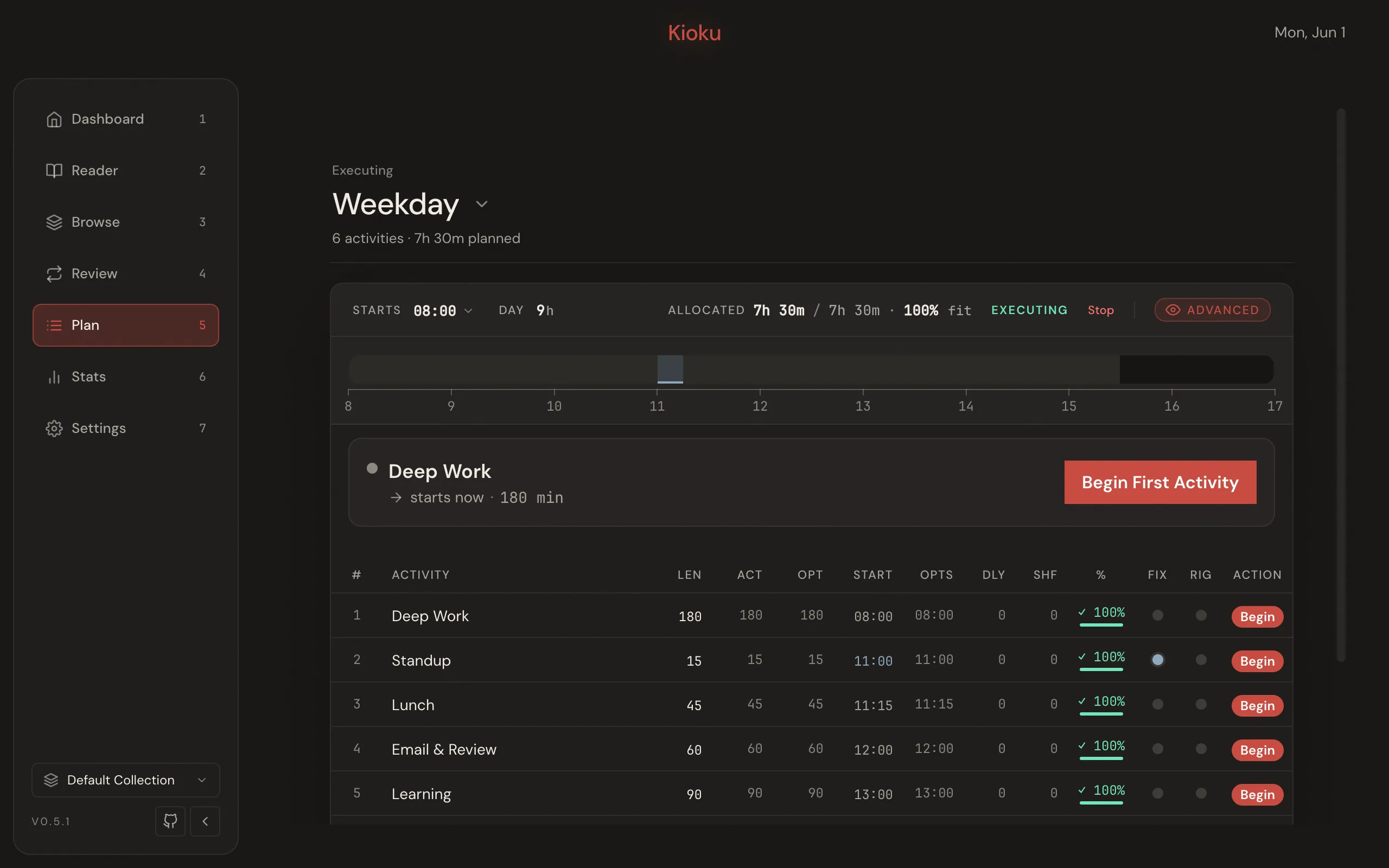
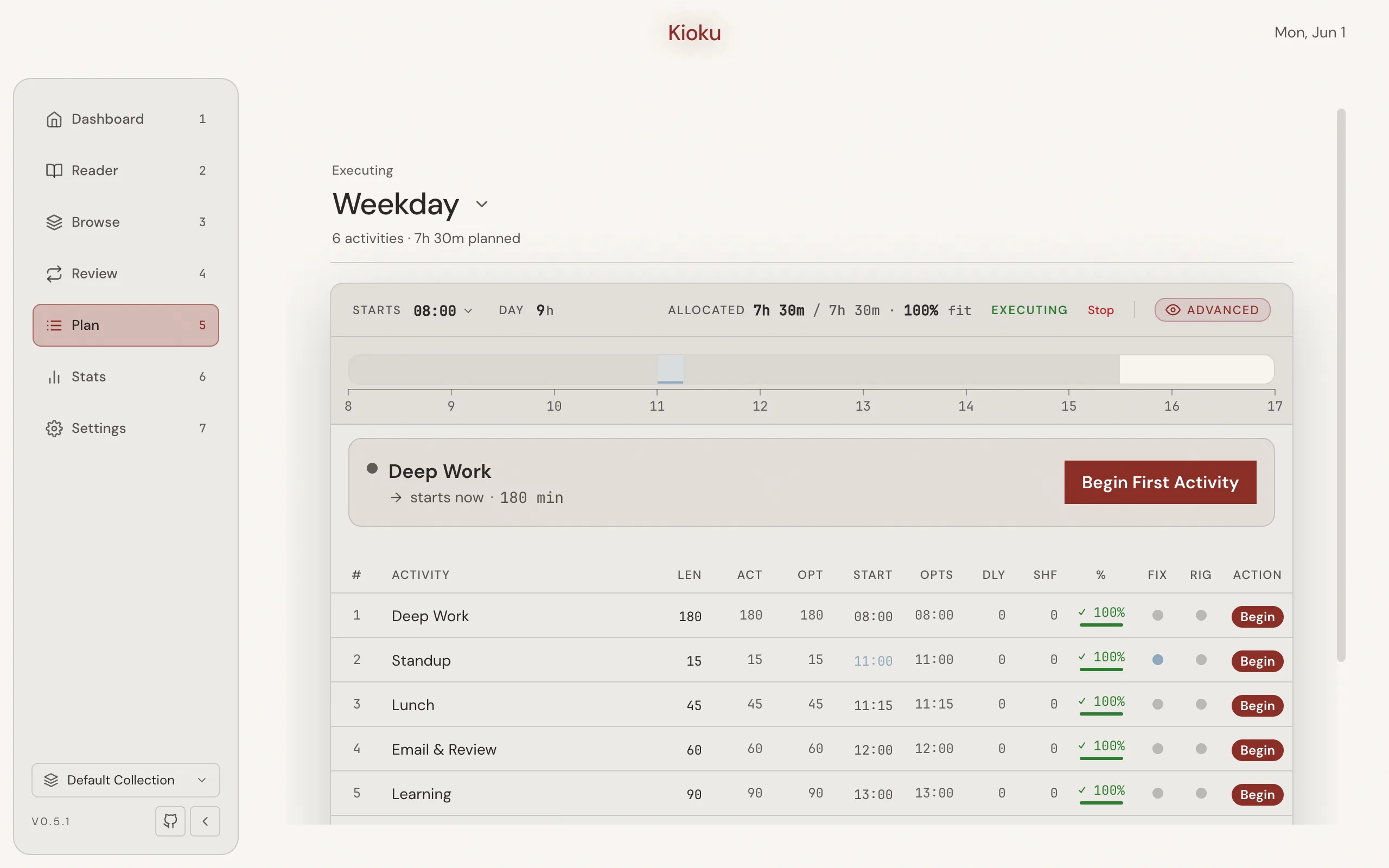
- Select the Start button in the bottom bar (or press G). Start is enabled only when the schedule is a template, has at least one activity, and has no blocking warning. Starting snapshots the template into a live run; the header shows an Executing status and a Stop button.
- In the ExecutionPanel, select Begin First Activity to start activity 1.
- As you finish each activity, select Begin (or press B) to advance to the next. The current activity shows ▶ Active, finished activities show ✓ Done, and upcoming rows show a Begin button.
- Watch the countdown for the active activity. It turns yellow in the final two minutes and red on overrun. When the alarm fires, select +5m to snooze the current activity’s alarm. Snoozing does not change the schedule.
- If a Fixed activity lies ahead and you are running late, select Begin + Shift (or press Shift+B) to push the fixed anchors proportionally. This button appears only when there are Fixed activities ahead and you are behind.
Stop the run
Section titled “Stop the run”Select Stop in the header (or press T). A confirm dialog warns This ends today’s run and records its final timing. You can’t resume it afterward. Confirm with Stop.
Review how it went
Section titled “Review how it went”Once a run is terminated, the header shows three actions:
- Analysis opens a Delay Analysis modal: per-activity planned versus actual time, biggest overruns first.
- Adjust copies each activity’s measured actual minutes back into the source template’s desired length and reports, for example, Adjusted 2 of 3 activities.
- Clear (or press C) hides the completed run from the editor. The run stays in history.
For aggregate statistics across runs, press S (or select Statistics):
- Pick a period: Last 7 days, Last 30 days, Last 3 months, Last year, or All time.
- Read the summary cards: Days executed, Total time, Avg daily, and Total delay. Also read the time comparison of Desired (what you wanted), Planned (what was allocated), and Actual (what you spent).
- Review the Top activities table and the Daily breakdown.
- Select Save CSV… to export the statistics.
Result
Section titled “Result”You have a saved template, at least one completed run, and a clear comparison of planned versus actual time. Use Adjust to fold a run’s real durations back into the template so the next day’s plan starts from more accurate numbers.