Connect an AI agent
Connect an agent on your computer through the Model Context Protocol (MCP) or Kioku’s command-line interface (CLI).
It can search and read your material, import web pages, quote Extracts from them, and make Cards. Agent access is off until you turn it on. Each agent asks you before it connects, and you choose which Collections it can reach and what it may do there. An agent can change or move to the Trash only what it added itself, never your own material.
Before you begin
Section titled “Before you begin”- Agent access requires Kioku 0.6.7 or later on macOS and Linux, or 0.6.8 or later on Windows.
- Kioku must be open while an agent uses it. Agents work through the running app, in the Collection that’s open.
- The setup below names Kioku’s location, so moving Kioku afterwards means setting each agent up again. On macOS, keep Kioku in your Applications folder.
- With the Linux AppImage, select Shell, then Add to PATH, before you copy any lines. An AppImage’s file name changes as it updates, so the lines then use a link that Kioku keeps up to date.
Turn on agent access
Section titled “Turn on agent access”- Open Settings.
- Go to Privacy.
- Under Agent access, turn on Allow agent access.
Turning it off disconnects every agent at once. Their pairings are kept for when you turn it on again.
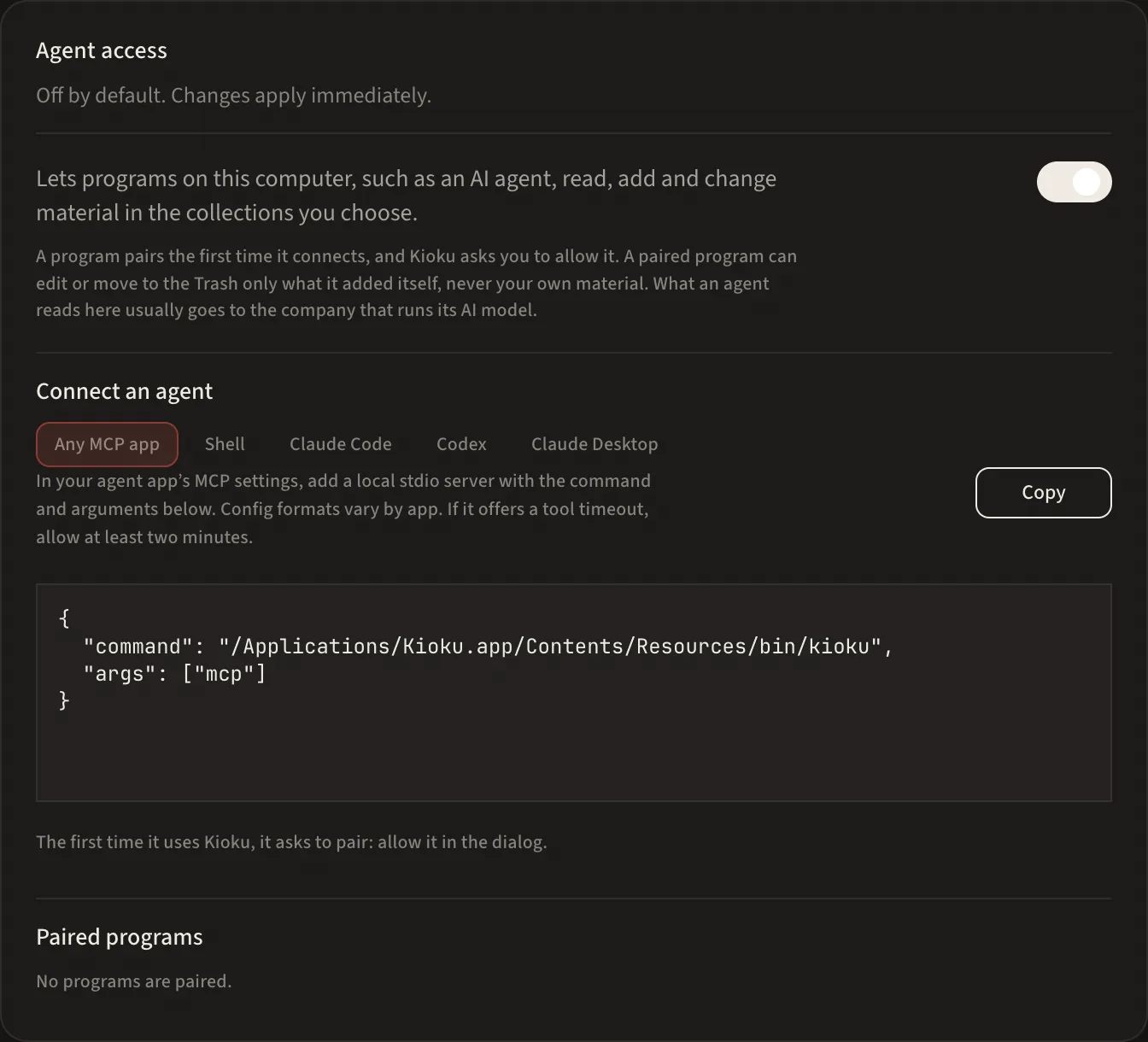
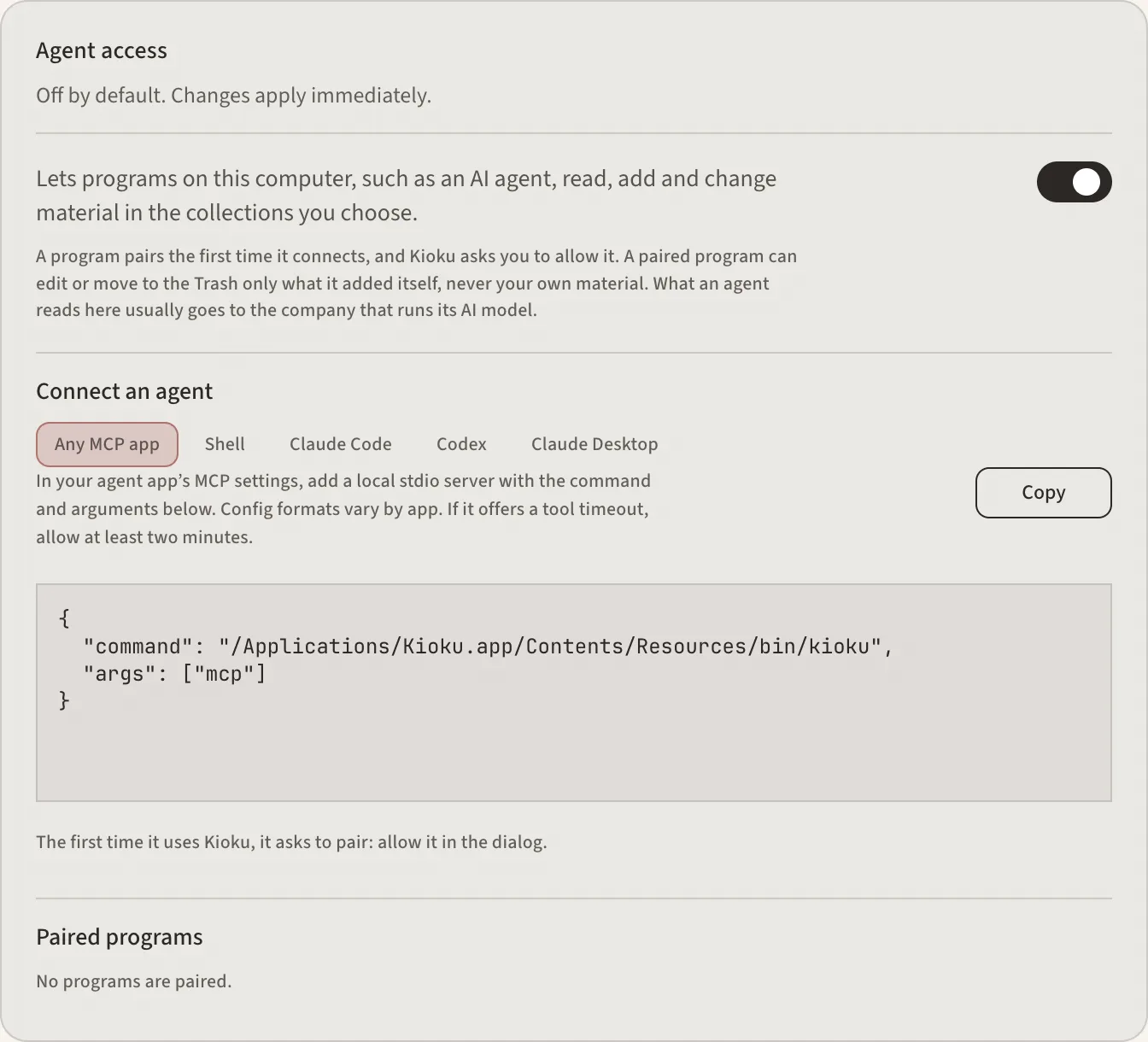
Connect any local MCP app
Section titled “Connect any local MCP app”- Under Connect an agent, select Any MCP app.
- In your agent app’s MCP settings, add a local server named
kioku. Choosestdioif it asks for a transport. - Use the
commandandargsshown by Kioku. Copy copies these fields as JSON. Each app has its own config format: put the fields in its server entry, or enter them separately in its settings. Keep the full command path as one value, including any spaces. - If the app offers a tool timeout, allow at least 120 seconds for pairing and imports.
- Ask your agent to check Kioku’s status. Allow it in Kioku’s dialog, as described below.
The server runs locally as kioku mcp. Your agent app must be able to start a program on this computer; an app that accepts only a remote server URL cannot connect directly. Kioku doesn’t require a particular AI provider or model.
Connect an agent that runs shell commands
Section titled “Connect an agent that runs shell commands”Some agents work by running commands. They use Kioku’s kioku command.
- Select Shell. On Windows, use the full command shown there in PowerShell; no separate Node installation or PATH change is needed. On macOS and with the Linux AppImage, Add to PATH links
~/.local/bin/kiokuto Kioku’s command without administrator rights. The Linux.debpackage already putskiokuon PATH. - Tell your agent to run
kioku pair --name "…"once, with a name you’ll recognize. Kioku asks you to allow it, as below. - Then
kioku helplists every command it can use. On Windows, keep the full quoted path and the leading&from the copied lines in place ofkioku.
If a terminal says command not found: kioku, add ~/.local/bin to your PATH. For zsh, the default on macOS, run this once and open a new terminal:
echo 'export PATH="$HOME/.local/bin:$PATH"' >> ~/.zshrcOn Debian and Ubuntu, the folder joins your PATH at login if it exists then, so log out and back in after Add to PATH.
Examples for specific apps
Section titled “Examples for specific apps”The other tabs under Connect an agent provide config examples for these apps. Select a tab, then Copy. Each example uses this Kioku’s own location.
Claude Code
Section titled “Claude Code”Paste the copied line into a terminal and run it once. It adds Kioku to Claude Code for all your projects. In a new session, ask Claude Code to do something in Kioku.
Add the copied lines to ~/.codex/config.toml. They let Kioku’s tools run without Codex asking each time. Without that, Codex refuses them when it can’t ask, as in codex exec. The lines also give a call up to two minutes, which a large import can need.
Claude Desktop
Section titled “Claude Desktop”In Claude Desktop, open Settings, then Developer, then Edit Config. Add the copied lines inside the outer braces of claude_desktop_config.json, then restart Claude Desktop.
If the file already has "mcpServers", add only the "kioku": { … } entry inside it, separated from the entry before it by a comma. Two "mcpServers" in one file make Claude Desktop reject the file.
Allow an agent
Section titled “Allow an agent”The first time an agent app uses Kioku, or an agent in a terminal runs kioku pair, Kioku asks you about it:
- A dialog shows the agent’s name and a code. If the agent shows you a code too, check that the two match.
- Choose the Collections it may use, and what it may do there: Read, Add material, Edit what it added, and Move what it added to the Trash.
- Select Allow.
The agent app waits for your answer, then carries on with what it was asked. Kioku’s dialog stays open for two minutes:
- If the agent stops waiting first, it says Kioku is asking you. Allow it in the dialog, then ask the agent again.
- If the dialog closed before you answered, ask the agent again, and it asks again.
Select Deny if you didn’t expect the request. Kioku then waits a while before it shows another request from any program, and longer after each one you don’t allow. Opening Settings → Privacy → Agent access ends that wait, for an agent you do mean to allow. Select Deny and turn off agent access to stop all requests until you turn agent access back on.
What an agent can and can’t do
Section titled “What an agent can and can’t do”With the access you allow, an agent can:
- search the open Collection, list its topics and cards, and read a topic’s text;
- make topics, and import a web page as a topic;
- quote an extract from a topic, which Kioku checks against the topic’s text and highlights there;
- make basic and cloze cards;
- edit, retitle, move and tag what it made, and move it to the Trash and back.
It can’t:
- change, move or trash your own material;
- delete anything for good: the Trash is as far as it goes;
- review cards, or change your settings.
When you edit something an agent made, it becomes yours, and the agent can no longer change it. If an agent changes something while you’re editing it, the editor shows a bar. Choose Keep mine to keep your typing, or Use the new version to take the agent’s.
Change or revoke access
Section titled “Change or revoke access”Each agent you allowed is listed under Paired programs, with when it paired and when it was last used.
- Edit what an agent may do, or which Collections it can reach.
- Revoke an agent to turn it away. It’s listed until you remove it.
- Remove an agent to forget it. It has to ask again to connect.
Troubleshooting
Section titled “Troubleshooting”- “Kioku is not running, or agent access is off.” Open Kioku and check that Allow agent access is on.
- Claude Desktop doesn’t show Kioku’s tools. Check that
claude_desktop_config.jsonhas one"mcpServers", with"kioku"inside it, then restart Claude Desktop. - The agent is refused a Collection. It can reach only the Collections you chose, and only the one that’s open. Open the Collection, or edit the agent’s access under Paired programs.
- You moved Kioku. Copy the lines again from Connect an agent, and select Add to PATH again if that button is available.
- Codex says a tool call needs approval. Check that
default_tools_approval_mode = "approve"is in Kioku’s table in~/.codex/config.toml.